You want to know what your audience thinks. What's holding them back, what they would buy, what they thought of your last course.
And you keep putting it off, always for the same reason: you have to find the right questions. Too few, and you learn nothing. Too many, and nobody finishes. Badly worded, and the answers are useless.
That's the part the AI can do for you. You keep what matters: knowing who you're talking to, and what you want to learn.
Step 1: choose Survey, then With AI
- In the menu, click Create and pick the Survey format: it's for collecting feedback, asking for an opinion, taking stock of a situation.
- Choose With AI. The other two starting points are the blank page (your questions, in your order) and importing a file or pasted text.
Step 2: say who you're asking
The screen asks: What do you want to learn from your audience? Two fields:
- Who is it for? The survey's audience. The more specific, the more relevant the survey: "customers who bought my X course in the last 6 months" beats "my customers".
- What you'll do with the answers (optional): for example, identify objections to your offer.
Then the settings, under the card:
- Method: by default, Matched to your brief, and the AI picks the one that serves your audience and your intent. You can also set it yourself: recommendation (NPS), satisfaction (CSAT), audience research, feedback collection, customer effort (CES), post-event or course feedback, idea validation, lead qualification.
- Number of questions: from 3 to 12.
- Language of the survey.
- More options: the tone, and the end button (for example Book a discovery call).
Click Generate my survey. Allow one to two minutes.
Step 3: adjust the questions and answers
The survey opens in the editor, on the Create tab. Each question has an answer type, and you can change it:
- Multiple choice and image choice;
- A 0 to 10 scale, with a label at each end;
- Stars, from 1 to 5;
- Yes / No;
- Free text.
You can rewrite a question, add some, delete some. Keep one or two free-text answers: they're the ones that give you your audience's exact words.
Step 4: participant details and the thank-you screen
Two settings decide what you know about your respondents:
- Ask for participant details: when on, the form (email, first name...) shows between the questions and the thank-you page. When off, the survey is anonymous.
- Ask for the email before the questions: the form comes before the questions instead of after.
The thank-you screen is the last one the person sees. Its heading and text can be edited, and you can add a button with your link. Without a link, no button shows.
Step 5: publish and read the responses
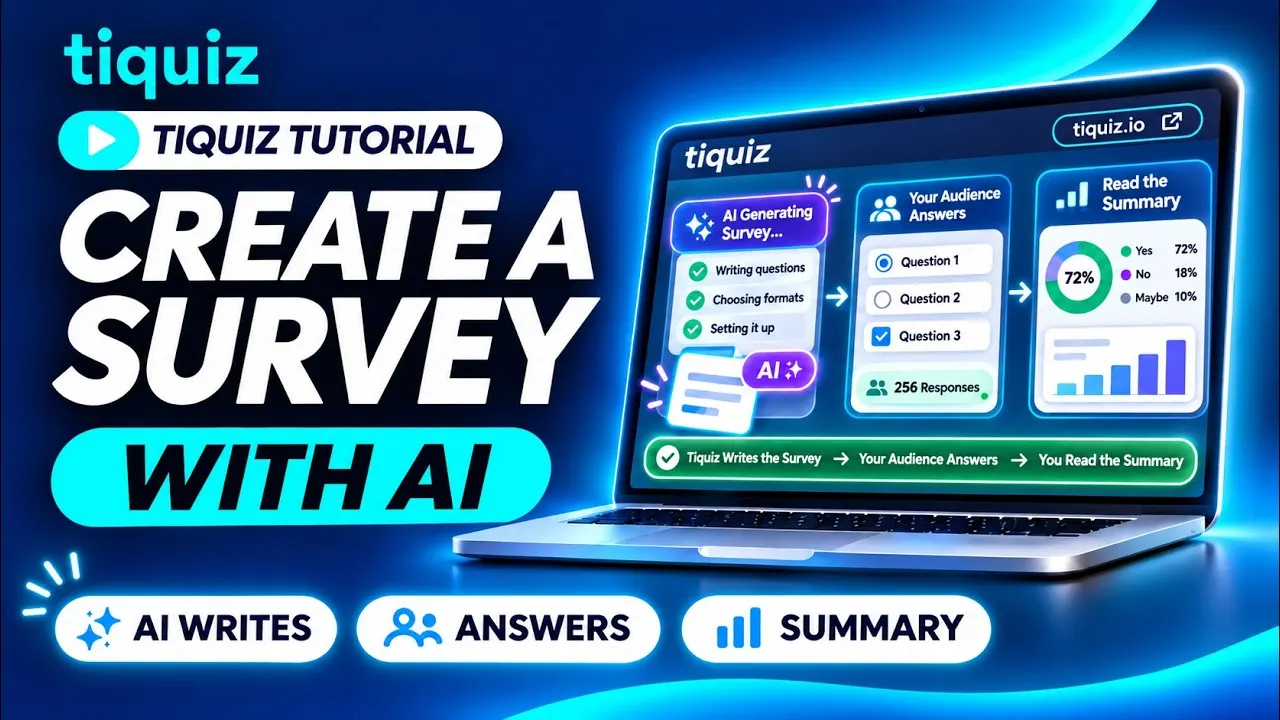
At the top of the editor, flip the switch from Draft to Live. The Share tab gives you the link, the QR code and the embed code for your site.
Responses arrive in the Responses tab, in two views:
- Summary: for each question, the breakdown of answers and the average rating.
- Responses: respondent by respondent. You can search for a respondent or an answer, and flag the ones you want to find again.
You export to CSV or Excel (one row per respondent), to a Summary PDF (the aggregated report, without respondents) or to a Detailed PDF. On PLUS plans, the AI analysis of the responses tells you what your answers really say, the key takeaways and the actions to put in place, from 5 responses.
Pitfalls to avoid
- A vague audience. "Everyone" gets you questions for no one. A survey speaks to a specific group, at a specific moment.
- Too many questions. The screen goes up to 12, but every extra question loses people. Ask yourself which one you could drop without losing anything.
- Defaulting to a recommendation score. It only makes sense for people who have already been your customers. Leave the method on Matched to your brief if you're unsure.
- Wanting anonymous answers AND emails. It's one or the other: decide before you share.
- Deleting responses to tidy up. It's permanent: they disappear from the table, the exports and the summary, and there is no trash.
- Sharing before publishing. As long as the survey is a draft, its link won't open for your visitors.
FAQ: creating a survey with Tiquiz
Is the survey included in the free plan?
Yes: 1 survey, on top of one quiz and one Popquiz. Paid plans have no limit on the number. Details are on the pricing page.
What's the difference between a survey and a quiz?
A quiz gives the person a result (a profile or a score) and points them to an offer. A survey doesn't return a result: it's for you, to collect feedback and read trends.
Can a survey be anonymous?
Yes. Turn off Ask for participant details: participants go straight to the thank-you page after answering, without leaving their email.
Can I import a survey I already wrote?
Yes. The Import starting point accepts a .txt, .docx or .pdf file, or pasted text: your existing questions become a survey.
Do respondents reach my email tool?
Yes, if they leave their email and a tool is connected to the survey: the contact goes to Systeme.io, GoHighLevel or your webhook, just like for a quiz.