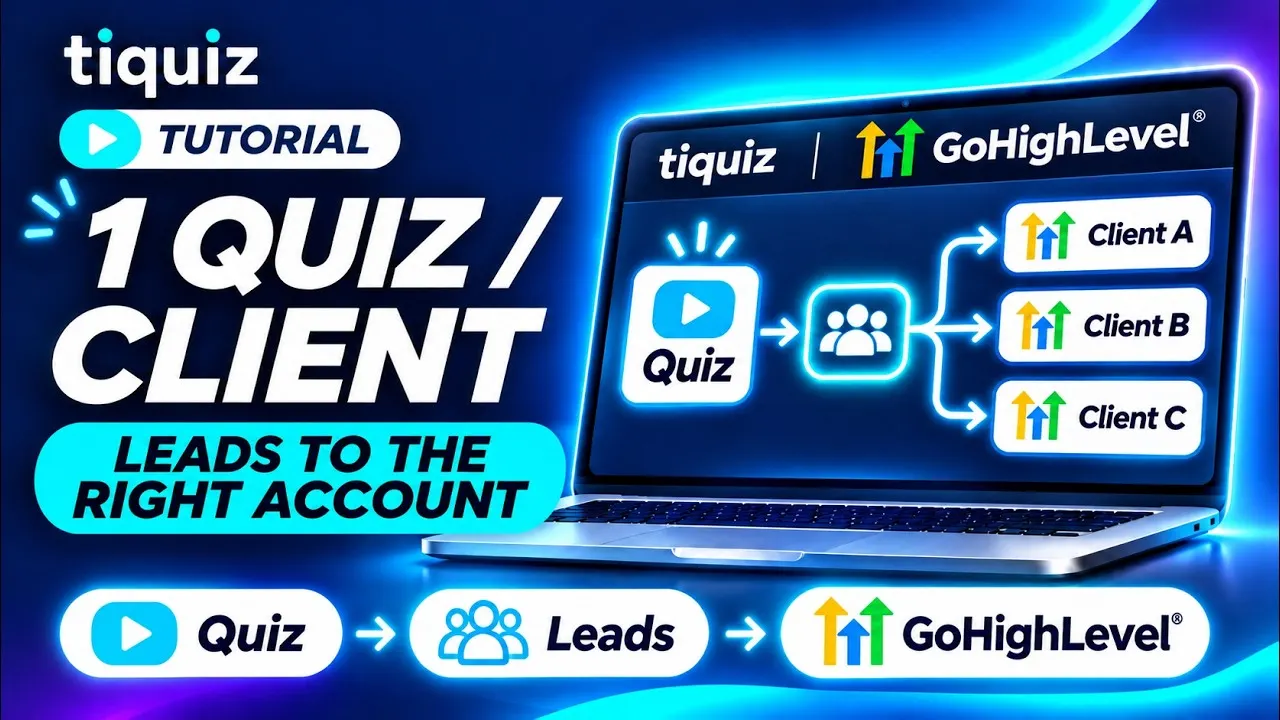
You run GoHighLevel for several clients. Each one has a sub-account, with its contacts, its workflows and its pipeline. And you want to deliver a quiz that fills THEIR sub-account, not yours, and certainly not the next client's.
You can do it from a single Tiquiz account. It all happens in two places: the Connections tab, where each sub-account becomes a connection, and each quiz's destination.
This article follows the video tutorial step by step, with the exact labels of the Tiquiz screens.
What you need before you start
- A Tiquiz account, on the right plan. The free plan counts 1 connection, a subscription 2, and PLUS as many as you want. Systeme.io, GoHighLevel and webhooks count together, across your whole account.
- Your GoHighLevel account, with your clients' sub-accounts. One connection is for one sub-account: that is where contacts and workflows live.
- One quiz per client, even a draft. If you don't have one yet, the AI writes it with you in a few minutes.
Step 1: connect your clients' sub-accounts
- In Tiquiz, open Settings, Connections tab. The GoHighLevel card says it: "One connection per sub-account. An agency can connect several at once."
- Click Connect. At GoHighLevel, you confirm Tiquiz's permissions.
- You are back in Tiquiz, on the GoHighLevel window, with one row per connected sub-account.
What Tiquiz creates depends on what you authorized:
- one sub-account: one connection, and the message "GoHighLevel connected.";
- your agency: one connection for each sub-account where the Tiquiz app is installed, and a message that counts them, for example "GoHighLevel connected: 3 sub-accounts."
To add one later, the Add a sub-account button sits below the list. And if you start the install from GoHighLevel instead of from Tiquiz, the Connections tab asks for one click before it writes anything: Link this sub-account.
The connection screens themselves are covered in how to connect Tiquiz to GoHighLevel.
Step 2: tell your connections apart
Each connection carries the name of its sub-account, as GoHighLevel knows it. So you don't have ten rows to rename to know which one belongs to which client. If Tiquiz could not read that name, the connection is called "GoHighLevel" followed by the first characters of the sub-account ID: the Rename pencil gives it the client's name.
On each row, click Test: you should read "It responds: the connection is live." Do it for every client before going further: a quiz tied to a connection that does not respond keeps its leads in Tiquiz.
Step 3: give each quiz its destination
This is the move that puts every lead in the right place. Open the client's quiz, Create tab, left column, Settings, "Quiz management" group: Where this quiz's leads go, Your email tool line. Pick the connection that carries the name of their sub-account.
A quiz that names its tool keeps it, whatever the project setting says. Do it for every quiz, no exception, even for the client whose sub-account is your default destination: the day you change the default setting, that quiz does not move.
Step 4: pick the tags in the client's sub-account
Once the destination is set, open each result of the quiz. The Tag to apply to people who got this result field lists the tags of THIS quiz's sub-account, not another client's. Pick one per result. If it is missing, create it in the client's sub-account first.
Workflows are built in each sub-account: a tag applied at one client triggers nothing until their sub-account has the workflow that listens for it. The quiz's Automate tab lists its tags and the recipe. To go all the way to the opportunity, follow the pipeline tutorial.
Step 5: understand the default setting, and don't rely on it
At the top of the Connections tab, the Where your leads go block holds the Default email tool menu. The screen says it: "These are the settings for quizzes that don't choose their own."
A new connection only becomes the default destination when your project had none. So when you connect several sub-accounts, a single connection carries that setting, and a quiz without a destination sends its leads to that sub-account, whichever client you built it for. Hence step 3.
Step 6: reuse a quiz that works for another client
In My projects, Duplicate creates a copy of the quiz. Open the copy, change its destination (step 3), then pick its tags in the new client's sub-account (step 4), and adapt the texts.
If your client has their own Tiquiz account, Give a copy of the quiz creates a link that installs a copy there: texts, questions, points, profiles, images and layout. Your tags, tracking pixels and button links stay with you, and the copy arrives as a draft: your client connects it to their sub-account.
Step 7: one workspace per client, with PLUS
PLUS includes multiple workspaces: one for each client. In the app, a workspace is called a project (Switch project menu, then New project), and the screen sums it up: "Each project has its own quizzes, leads and stats."
Connections and the default destination are also set project by project. Before you work in a client's project, open it, then check in Settings, Connections tab, that their sub-account is listed there and that it is the Default email tool. The number of connections, though, is counted across your whole account, all projects together.
Step 8: test client by client
Set each quiz to Live and take it from its link, with a test address. Then open the client's sub-account in GoHighLevel: you should find the contact, the tag of their result and the source "Tiquiz", followed by the quiz title.
Then check the opposite: the test contact is in no other sub-account. It is the only check that proves one client's quiz is not filling another client's CRM.
The pitfalls to avoid
- A quiz without a destination. It follows the project's default setting, so one single client's sub-account. Every quiz names its connection (step 3).
- A full plan. Each sub-account counts as one connection. If your agency has more than your plan allows, Tiquiz connects the ones that fit and tells you: "2 sub-accounts connected. Your plan doesn't allow more: to connect the others, switch to PLUS." If the plan is already full: "Your plan has reached its number of connections: nothing was added."
- Two sub-accounts with the same name. Tiquiz names each connection after its sub-account. If two sub-accounts share a name, the second connection also gets the start of its identifier, in parentheses, so you can tell them apart. The clearest option is still to give your sub-accounts distinct names in GoHighLevel, or to rename the connection in Tiquiz.
- Deleting a client's connection. Tiquiz warns you first: "Quizzes using it will fall back to the default connection." In an agency, the default connection is another client's sub-account. Set that client's quizzes to draft first, or give them another destination.
- Tags picked before the destination. The tag list is the one of the quiz's sub-account. Change the destination, then pick the tags again: a tag that does not exist at the client will trigger none of their workflows.
- A paused or broken connection. With "Sync paused", nothing is sent to that sub-account anymore, and nothing is sent elsewhere either: leads stay in Tiquiz. If GoHighLevel rejects the connection, the GoHighLevel card shows "Disconnected" and you get one email, once. Once the connection is back, resend the leads with Sync all, in My leads.
To show a client's quiz inside their funnel, follow the GoHighLevel quiz funnel from A to Z. To send their best result to their calendar, read turn quiz results into booked calls. And if you are still weighing GoHighLevel's own quiz builder, the comparison is in GoHighLevel quiz builder vs an external quiz tool.
FAQ: Tiquiz for a GoHighLevel agency
How many GoHighLevel sub-accounts can I connect to Tiquiz?
One sub-account counts as one connection: 1 on the free plan, 2 on a subscription, unlimited on PLUS. Systeme.io keys and webhooks count too. The plans are on the pricing page.
Do I need one Tiquiz account per client?
No. A single account can hold one connection per sub-account, and each quiz picks its own. If your client wants to keep control of their quiz, they open their own account and you hand them a copy with Give a copy of the quiz.
Can one client's leads end up in another client's sub-account?
Only if the quiz does not name its destination, or names the wrong one: it then follows the project's default destination. Set Where this quiz's leads go on every quiz, and check with a test address.
How does Tiquiz name my sub-account connections?
After the sub-account, as GoHighLevel knows it. If the name could not be read, the connection is called "GoHighLevel" followed by the first characters of the sub-account ID, and the Rename pencil lets you rename it.
What happens if my plan is no longer enough?
The connections already in place stay, and they keep sending. You simply cannot add more until you remove a connection or change plans, in Settings, Account & Pricing tab.
Are the tags already on my client's contacts erased?
No. Tiquiz adds its tags to those already there. A contact who takes a second quiz, or gets another result, keeps the earlier tags.