Building a quiz is the start. After that you will want to fix a question, swap an image, send the link to your list, lend the quiz to a colleague, or clean up your drafts.
These are simple moves, but two of them get mixed up all the time (sharing the link and giving a copy), and a third one scares people for no reason (deleting). Here is each one, in the order of the video.
Step 1: Find your quiz in My projects
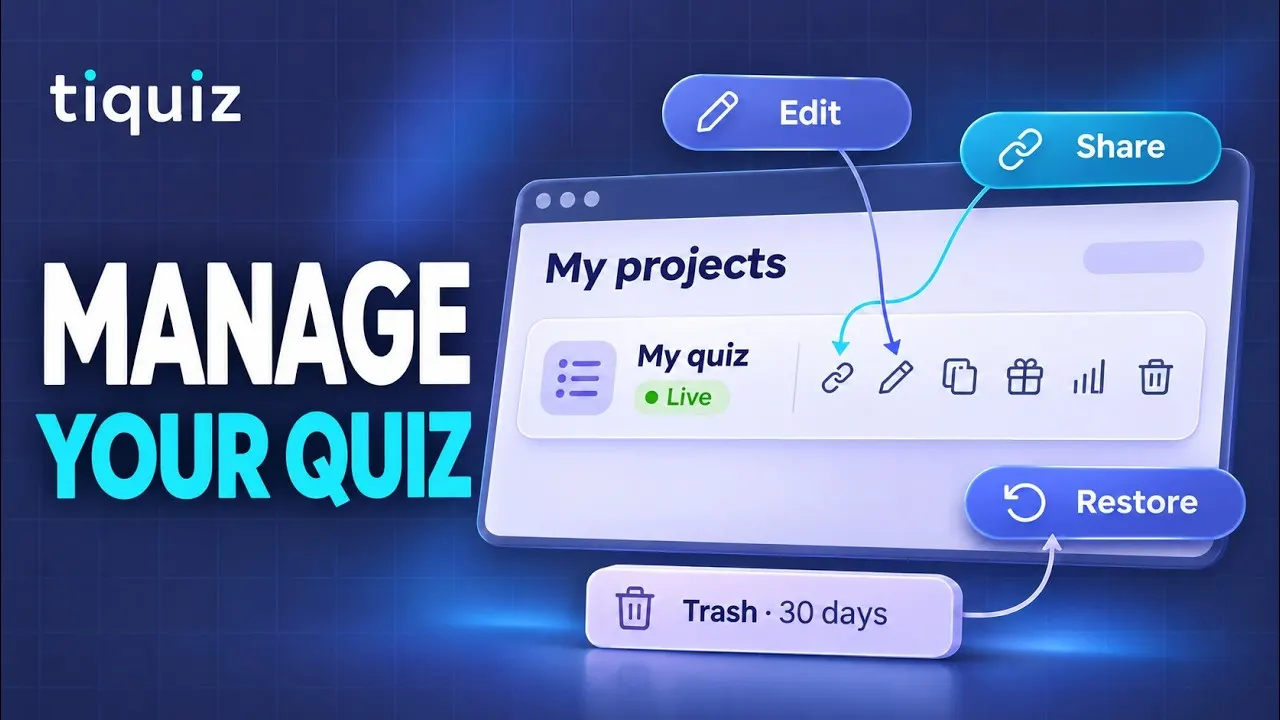
In the left menu, click My projects, then My Quizzes. Each quiz has its own row, with its status (Live or Draft) and its numbers: views, leads, shares.
On the right of the row, six icons. In order:
- copy the link of the quiz;
- edit (the pencil);
- duplicate;
- give a copy (the gift);
- see the statistics;
- delete (the red trash can).
They are the ones used in the rest of this article.
Step 2: Edit a quiz, even a live one
Click the pencil: you land in the editor. Click the text you want to change, and type right into it. It works the same way for the title, a question, an answer or a result.
At the top right, Tiquiz warns you that you have unsaved changes. Click Save: until you do, your visitors still see the old version.
Two things to know:
- The link does not change. If your quiz is live, your visitors see the new version right away, with the same link.
- Before a big change, duplicate your quiz and work on the copy. The original keeps running while you prepare what comes next.
The leads you already captured and your statistics stay in place when you edit the quiz.
Step 3: Share the link to your quiz
This is the first way to share, the one that gets the quiz in front of your audience. In the editor, open the Share tab. You will find:
- Your quiz link, with the button to copy it.
- The end of the link, which you can change to keep it short and easy to remember. Careful: as soon as you change it, the old link stops working. Remember to replace it everywhere you have already posted it: your bio, your emails, your website.
- The embed code, to show the quiz inside a page of your website.
- The QR code, for a flyer, a book or a slide.
From the list in My projects, the first icon copies the link in one click. This link only works when the quiz is live.
Step 4: Give someone a copy of the quiz
This is the second way to share, and it is not the link people use to take the quiz. It is a link that installs your quiz in another person's Tiquiz account, where they can adapt it and publish it as their own.
What is it for?
- You are a Tiquiz affiliate: you offer a ready-made quiz to the people who sign up through your link.
- You sell a course or a coaching program: you give your students a quiz template to adapt.
- You are looking for a bonus to offer: a quiz already written, on your audience's topic.
In the list, click the gift icon. In the window:
- write who the link is for;
- by default, the link works only once: uncheck the box to give it to several people;
- click Create the link and copy it, then send the link.
The person opens the link and clicks Install this quiz in my account. They need a Tiquiz account. The quiz arrives in their account as a draft, with its questions, results, images and colors.
What stays with you: your tags, your tracking pixels and your button links. Your leads never leave with the copy.
The window lists the links you have already created, with the number of installs. You can disable a link at any time, and reactivate it later.
Step 5: Duplicate a quiz
Duplicate creates a copy of the quiz in your own account. It is the right starting point for a variant: the same quiz for another audience, or a version to test next to the original.
The copy has its own link, its own leads and its own statistics. The original does not move.
Step 6: Delete a quiz, and get it back
Click the red trash can, then confirm. The quiz is no longer live: its link stops responding.
But nothing is lost. It stays in the trash for 30 days, at the very bottom of the page, with its questions, its leads and its statistics. Click Restore: it comes back exactly as it was, with the same link. After that, it is erased.
A quiz used as a question inside a Popquiz cannot be deleted while it is in the video: Tiquiz tells you so, and names the video.
Pitfalls to avoid
- Sending the copy link to your audience. That link installs the quiz in an account, it does not let people take it. For your audience, use the link from the Share tab.
- Changing the custom link of a quiz you already shared. The old link stops working right away, and people who received it land on a page that cannot be found. Tiquiz warns you first: if you change it anyway, replace the link everywhere you posted it.
- Leaving the editor without saving. An unsaved change is not live: check the message at the top right before you leave.
- Deleting a quiz to pause it. The Draft switch is enough: the quiz stops answering, and you keep everything at hand.
- Forgetting the trash. A quiz deleted by mistake can be restored for 30 days. No need to rebuild it.
FAQ: managing your quizzes in Tiquiz
Can I edit a quiz that is already live?
Yes. The link stays the same, and people who open it see the edited version. Remember to click Save. For a big rework, duplicate the quiz and work on the copy.
Do I lose my leads if I edit my quiz?
No. The leads you already captured and your statistics stay attached to the quiz.
What is the difference between sharing a quiz and giving a copy?
Sharing means sending the quiz link so people take it: the leads come to you. Giving a copy installs the quiz in someone else's Tiquiz account, where they publish it and collect their own leads.
Do my leads leave with the copy of the quiz?
No. The copy carries the content and the layout. Your leads, your tags, your tracking pixels and the addresses of your buttons stay in your account.
Can I recover a deleted quiz?
Yes, for 30 days. It sits in the trash, at the bottom of My projects, with its leads and its statistics. The Restore button puts it back with the same link.
What happens to the link of a deleted quiz?
It stops answering while the quiz is in the trash. If you restore the quiz, the same link works again.