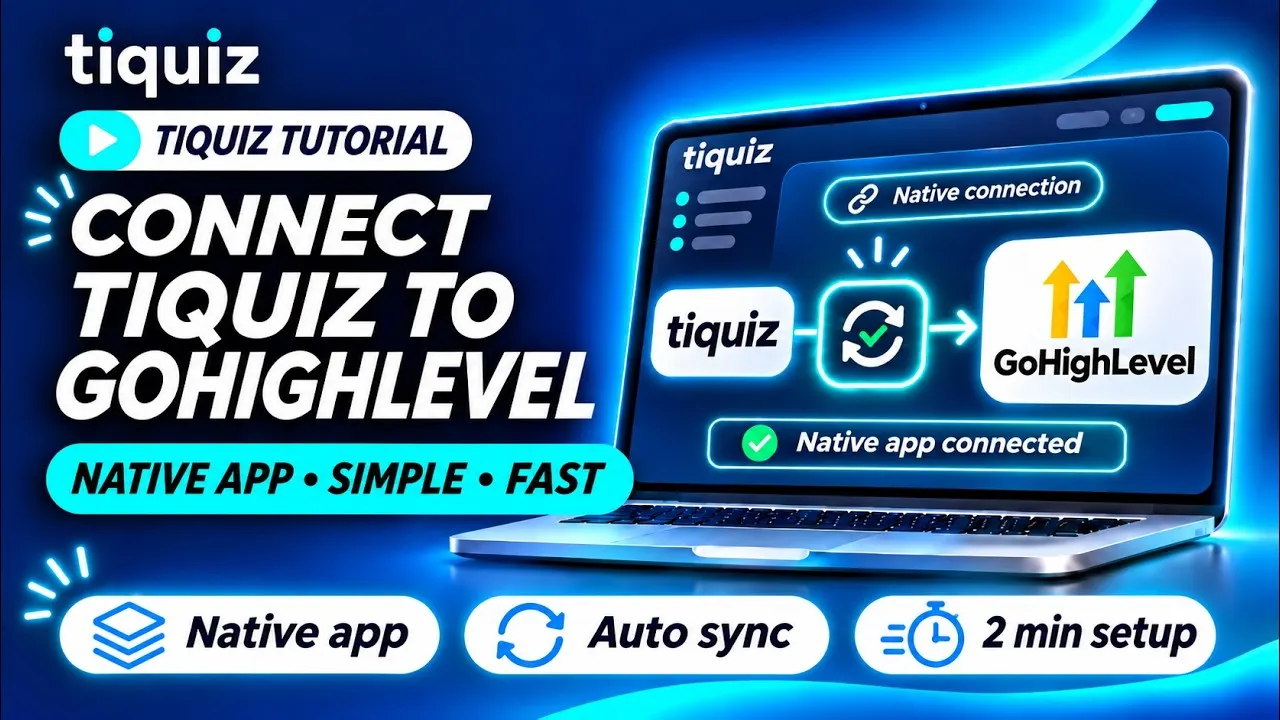
Your quiz captures leads, and your CRM is GoHighLevel. Between the two, there should be no CSV export, no copy and paste, and no middle tool to pay for.
The connection is native. Tiquiz creates or updates the contact in the sub-account you picked, then adds the tags you set on your results. Your workflows take it from there.
This article follows the video tutorial step by step, with the exact labels of the Tiquiz screens, and what makes a lead not arrive, or arrive and trigger nothing.
What you need before you start
- A Tiquiz account. The free plan counts 1 connection, a subscription 2, and PLUS as many as you want. Systeme.io, GoHighLevel and webhooks count together.
- A GoHighLevel account, and the sub-account that should receive your leads. One connection is for one sub-account: that is where contacts and workflows live.
- A quiz, even a draft. You will use it to pick its destination and set its tags. If you don't have one yet, the AI writes it with you in a few minutes.
Step 1: connect GoHighLevel in Tiquiz
- In Tiquiz, open Settings, Connections tab. You see one card per tool.
- On the GoHighLevel card, which reads "Not connected yet", click Connect. Nothing to copy, nothing to paste.
- You land at GoHighLevel. It asks you to confirm Tiquiz's permissions, then to pick the sub-account that will receive your quiz leads.
- You are back in Tiquiz. A message confirms "GoHighLevel connected", and the GoHighLevel window opens by itself, with your sub-account in it.
The permissions requested cover your contacts (reading and writing them), your sub-accounts and your tags. Nothing about your conversations, payments or appointments.
Below the card, the Step-by-step guide link opens the GoHighLevel connection guide in a new tab: handy to keep open while you connect.
Step 2: check that the connection responds
In the GoHighLevel window, each connected sub-account has its own row. Click Test: you should read "It responds: the connection is live."
On the same row:
- the Sync on switch, which pauses the connection without deleting it;
- the Set as default star, the Rename pencil and the Delete trash can;
- below, the Add a sub-account button, to connect another one.
If you read "GoHighLevel refuses the connection. Reconnect this sub-account.", click Add a sub-account and pick the same sub-account at GoHighLevel. Tiquiz recognizes it, renews its access without creating a second row, and shows "GoHighLevel access renewed: the connection works again." Its quizzes keep their destination. Don't delete it to reconnect it: its quizzes would fall back to the default connection. The details, and the other reasons a lead doesn't arrive, are in quiz lead not showing in GoHighLevel: 5 checks.
Step 3: choose where your quiz leads go
This is the step people forget. Connecting a tool is not enough: you have to tell Tiquiz that this tool receives the leads. There are two settings, and the second one wins over the first.
- For your whole project. At the top of the Connections tab, the Where your leads go block holds the Default email tool menu. If GoHighLevel is the very first tool you connect, it becomes the default destination by itself. If you already had Systeme.io, nothing moves, and the screen says so: "Connecting a new tool doesn't change where your leads go: this menu chooses it."
- For one quiz. Open the quiz, Create tab, left column, Settings, "Quiz management" group: Where this quiz's leads go, Your email tool line. Pick your GoHighLevel connection. A quiz that names its tool keeps it, whatever the project setting says.
For a survey, the same setting is called Where this survey's leads go.
Step 4: set a tag on each result
Still in the Create tab, open each result. The Tag to apply to people who got this result field lists the tags of your GoHighLevel sub-account: pick one per result. If the tag you want is not in the list, create it in your sub-account first.
Depending on what you built, other tags are sent too:
- on a scored quiz, the Tags per score range option;
- on a survey, Tag to apply to people who pick this answer, under each answer;
- if you offer a sharing bonus, Tag to apply to people who share.
Tiquiz neither invents nor translates any tag: what you pick here is what GoHighLevel receives, character for character.
Step 5: create one workflow per tag in GoHighLevel
A tag on its own triggers nothing, in GoHighLevel as anywhere else. Your quiz's Automate tab is then titled "Automate what happens after the quiz, in GoHighLevel": it lists the exact tags of THIS quiz (one click on a tag copies it) and gives "The recipe, the same for every tag":
- Create a workflow (Automations, Workflows) and name it after the tag.
- Trigger: "Contact Tag", filter "Tag Added", then pick this tag.
- Action: "Send Email" or "Add to Campaign", then pick what the person should receive.
The Open my GoHighLevel workflows button takes you there. Repeat the recipe for each tag in the list: a result without a workflow gets its tag, and nothing else.
To go beyond the first email (follow-up, opportunity in your pipeline, alert, appointment), read the 5 workflows to build after a quiz. And if you would rather have the emails go out from Tiquiz, with no workflow to build, that is covered in the article on follow-up emails: your tags still land in GoHighLevel to sort your contacts.
Step 6: take the quiz for real
Set your quiz to Live, then take it from its link, with a test address, up to the email screen. In the contacts of your GoHighLevel sub-account, you should find:
- the contact, with their email and the details your quiz asks for;
- the tag of their result;
- the source "Tiquiz", followed by the quiz title.
When your connection is allowed to write the sub-account's custom fields, the result also arrives in plain words, in a field named tiquiz_resultat. Without that permission, the contact and its tags are still sent.
Take the quiz again with the same address and another result: the second tag is added, the first one stays. Tiquiz adds its tags to the contact's tags, it never replaces any.
The full list of what is sent (phone, country, your form's custom fields) is in the connection guide.
The pitfalls to avoid
- Connecting, and not choosing the destination. If another tool was already your project's destination, your leads keep going there. Check the Default email tool menu, or the quiz destination (step 3).
- A tag with no workflow. The contact arrives, the tag is applied, and no email goes out. The recipe in the Automate tab is repeated for each tag.
- Publishing the workflows after sending traffic. A workflow only starts on a tag added after it was published: contacts tagged before do not enter it on their own. Engine first, traffic second (the detail and its source are in the GoHighLevel quiz funnel article).
- A paused connection. With the switch on "Sync paused", nothing is sent anymore, and nothing is sent elsewhere either: leads stay in Tiquiz. Once sync is back on, resend them with Sync all, in My leads.
- A broken connection. If GoHighLevel rejects the connection (app uninstalled, permissions removed), the card shows "Disconnected" and you get one email, once. Delete the sub-account, reconnect it, then Sync all.
- A full plan. Each sub-account counts as one connection. Beyond what your plan includes, Tiquiz adds nothing and tells you: "Your plan has reached its number of connections: nothing was added."
- Looking for a custom field that is not on the contact. The contact and its tags are always sent. The result in plain words and your form's fields are only written when your connection has permission to do so: the connection guide explains how to check. To trigger a workflow, rely on the tag.
Still deciding between GoHighLevel's own quiz builder and a connected tool? The comparison is in GoHighLevel quiz builder: built-in or external. And to show your quiz inside a GoHighLevel page, follow the embed code walkthrough.
FAQ: connecting Tiquiz to GoHighLevel
Do I need Zapier or Make to connect Tiquiz to GoHighLevel?
No. The connection is direct: one Connect button in Settings, Connections tab, and Tiquiz sends every lead to the sub-account you authorized, with no middleman and no extra subscription.
Is the GoHighLevel connection included in the free plan?
Yes. The free plan counts 1 connection, a subscription 2, and PLUS as many as you want. A Systeme.io key, a GoHighLevel sub-account and a webhook each count as one connection. The plans are on the pricing page.
I connected GoHighLevel, but my leads still go to Systeme.io. Why?
Because connecting a tool doesn't change where your leads go. In Settings, Connections tab, pick GoHighLevel in the Default email tool menu, or set the destination on the quiz itself: Create tab, Where this quiz's leads go, Your email tool line.
Are the tags already on a contact erased?
No. Tiquiz adds its tags to those already there. A contact who takes a second quiz, or gets another result, keeps the earlier tags.
I manage several sub-accounts: how do I connect them?
One connection is for one sub-account. From an agency account, the Connect button offers all your sub-accounts at once, within your plan's limit, and Add a sub-account adds one later. Each quiz then picks its destination: a client's quiz fills their sub-account, not yours. Beyond two connections, you need PLUS.
What happens to my leads if the connection breaks?
They stay in Tiquiz. You get one email, once, and the GoHighLevel card shows "Disconnected". Once the sub-account is reconnected, the Sync all button in My leads resends them: a contact that already exists is updated, not duplicated.