A quiz captures emails. But an email on its own says nothing: in your email tool, it's one more row among the others.
What your quiz knows is what the person answered. What's holding them back, where they stand, which profile they got. That's exactly what you need to write them three lines that land, instead of a message everyone gets.
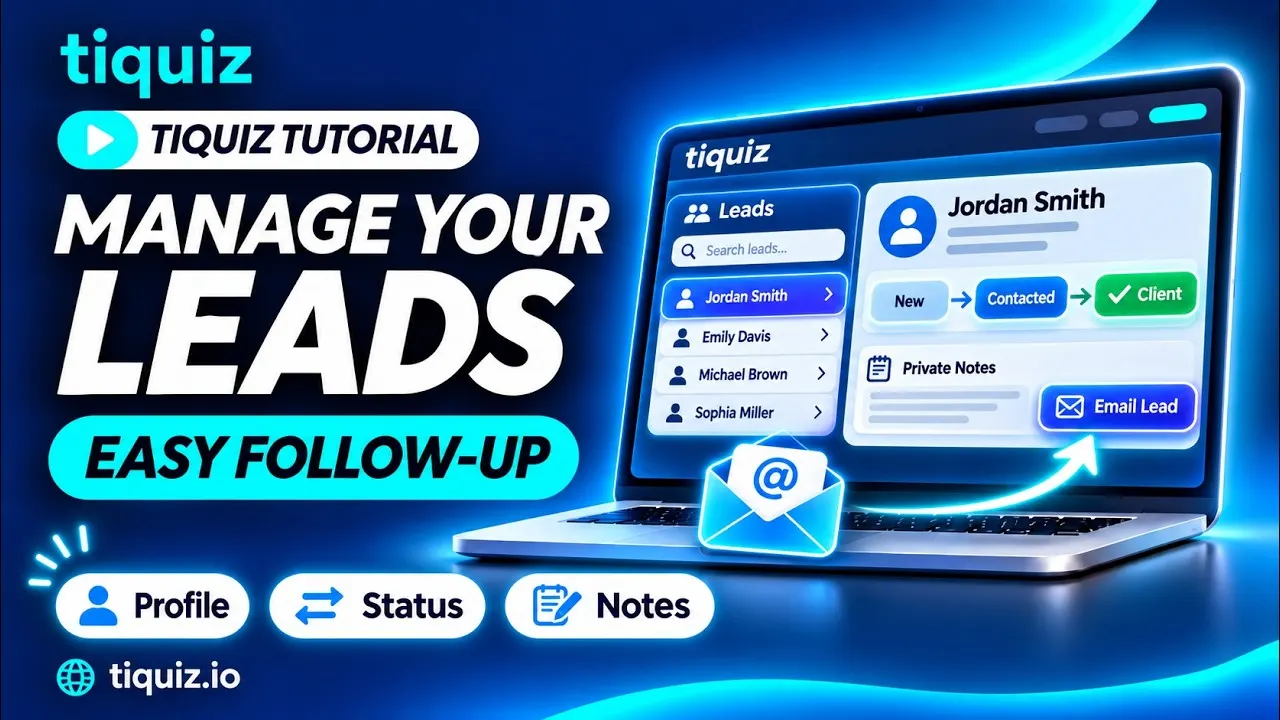
You still have to find that information the day you need it. That's what the My leads screen is for.
Step 1: find and filter your leads
Open My leads in the menu. At the top, four counters: your total leads, this month's, those synced to your tool, and those that aren't.
- Search finds a lead by email, first name or last name.
- All projects: pick a quiz or a survey to see only its leads.
- All statuses: show only New, Contacted or Client leads.
Each row gives the email, the name, the quiz, the result they got, the tag applied, the sync state and the date.
Step 2: open a lead's page
Click a lead's email: their page opens. It first says when the person came in, and through which quiz or survey. Then:
- Contact: their details, and what they checked for consent.
- Profile, or their score on a scored quiz.
- Their answers, question by question.
- Requested information: the fields you added to your form.
- See their result page: the exact page they saw at the end of the quiz.
- Sent to your tool: whether the contact reached the connected tool, and the tag applied.
- Tiquiz emails: each email of their follow-up sequence, sent, opened, clicked or upcoming. The Stop emails for this person button halts their sequence.
Step 3: set a status and take notes
The status has three values: New, Contacted, Client. It tells you at a glance who you already wrote to and who bought, and it's what the filter on the My leads screen uses.
The notes are yours: what you remember about this person, what you offered, next steps. They're only visible to you and they save automatically.
Step 4: write to them from their page
In the Write to them block, fill in the subject and the message, then click Send. It's a single email, sent right away from your sending address (the one your quiz emails use). If the person replies, the reply lands in your inbox.
The page keeps the history of emails sent from this screen. So you know what you already told them before writing again.
The right time to write is something you read on the page: a sequence email opened and clicked, an answer that plainly says what's holding them back, a profile that matches your current offer.
Step 5: act on several leads, and export
In the list, check several leads (or Select all). A bar appears with three actions: Set to a status, Export selection, or Delete.
The Export CSV button downloads your leads with one column per question, the date, phone, country, scores on a scored quiz and the tag applied.
And if a contact didn't reach your tool, the Sync button on its row sends it (it becomes Send again once the contact has gone through). Sync all does it for all your leads: existing contacts are updated, not duplicated.
Pitfalls to avoid
- Thinking locked leads are lost. The free plan shows 10 leads per 30-day window. The next ones are still captured and kept: they unlock when you move to a paid plan, and are then sent to your tool automatically.
- Deleting to tidy up. Deletion is permanent: the contact, their answers, your notes and the history are erased from Tiquiz, and their upcoming emails are canceled.
- Writing without checking consent. The page says what the person checked. Accepting the privacy policy is not agreeing to receive your emails.
- Running Sync all without thinking. If an automation in your tool starts on an added tag, it may run for contacts that receive a new tag.
- Pushing someone who unsubscribed. You can no longer write to them from their page, and that's on purpose.
- Treating the lead page as a newsletter tool. It sends one email to one person, not a broadcast to a whole list. And it's capped at 100 individual emails per 24 hours.
FAQ: leads in Tiquiz
How many leads can I see on the free plan?
10 leads per 30-day window. The next ones are captured anyway, and kept. On a paid plan, all your leads are visible and go to your tool. The plans are on the pricing page.
Are my leads also in my email tool?
Yes, if a tool is connected to the quiz: the contact is created or updated there with their tag, in Systeme.io or GoHighLevel, or sent to your webhook. The lead's page tells you whether it went through.
What's in the CSV export?
One row per lead, with one column per question, the date, phone, country, scores on a scored quiz and the tag applied.
Can I email all my leads at once from Tiquiz?
No. From a lead's page, you write to one person. Automatic sends go through each quiz's follow-up email sequence. For a newsletter, that's your email tool's job.
Can a lead find their result again later?
Yes. Tiquiz keeps their result page: you open it from their page, and a button in your follow-up emails can take them back to it.