Your quiz is connected to Brevo, and the first contacts are coming in, each one in the list of their result. Now what? A list that fills up while nobody writes to those contacts is a lead going cold.
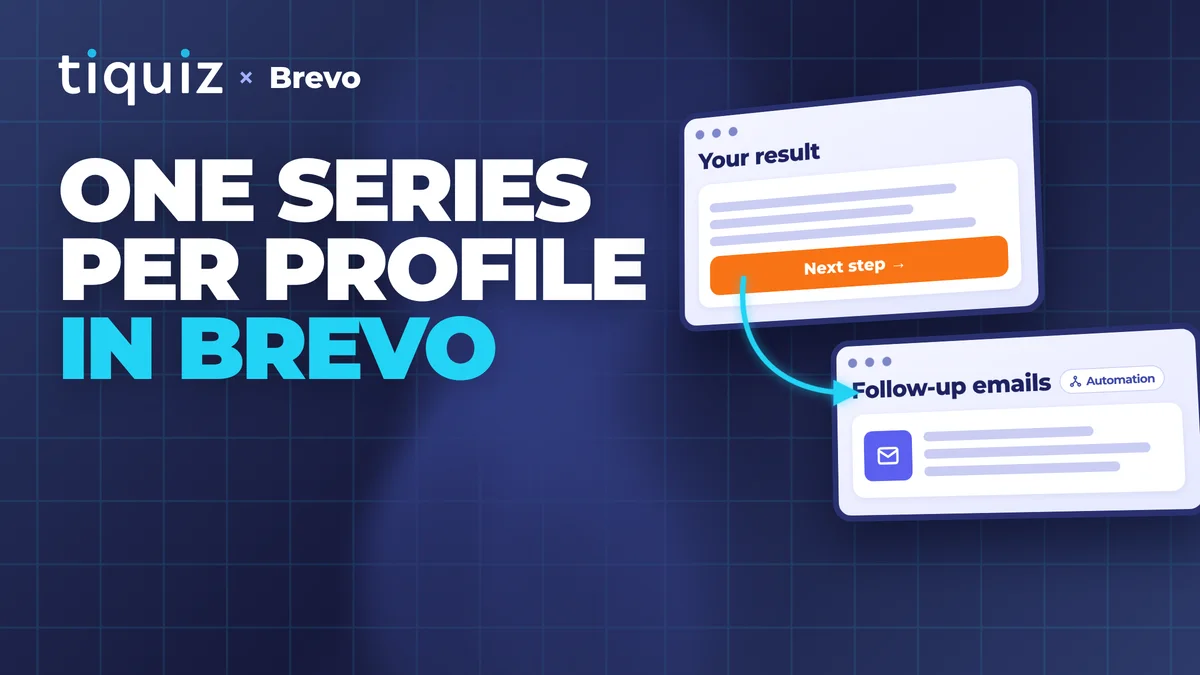
This article builds the next step, in Brevo: one automation per profile, email by email, with the delays and the settings to check. I'm using the example from the post-quiz email sequence.
Brevo automation after a quiz: how it works
The example is a career coach whose quiz, "What's Your Career Change Type?", has three results:
- Compass: the urge to change is there, the direction isn't.
- Safety Net: the direction is clear, but giving up a paycheck feels scary.
- Leap: ready to quit tomorrow, with no plan.
In Tiquiz, each result has its tag. In Brevo, each tag becomes a list with the same name, in a Tiquiz folder. That makes three lists, and three Brevo automations, one per list. Everyone gets the emails written for their profile, and not the other two.
The Brevo automation trigger: a contact added to a list
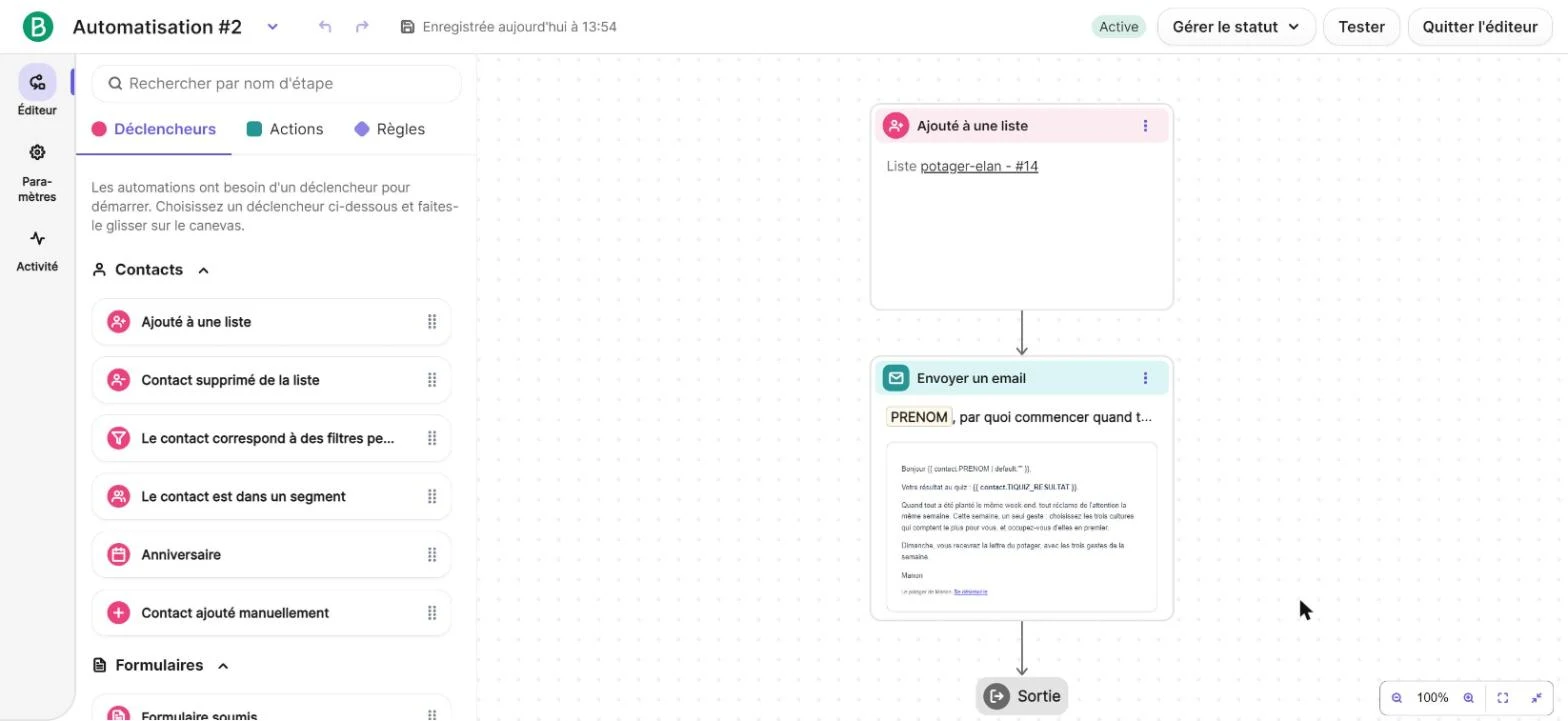
In Brevo, open Automations and create an automation. As the starting point, pick a contact being added to a list, then the result's list in the Tiquiz folder.
Three other starting points, depending on what you want to send:
- The "Tiquiz - leads" list gets every lead, whatever their result. Use it for one email that goes to everyone, like the same welcome note for all.
- An answer list: if you tagged a specific quiz answer, it has its own Brevo list too, and can start its own email.
- The
tiquiz_quiz_termineevent: Tiquiz sends it to Brevo every time a quiz is finished, with the result. Once your account has received it once, it can also be used as a trigger.
Each profile's Brevo welcome series, email by email
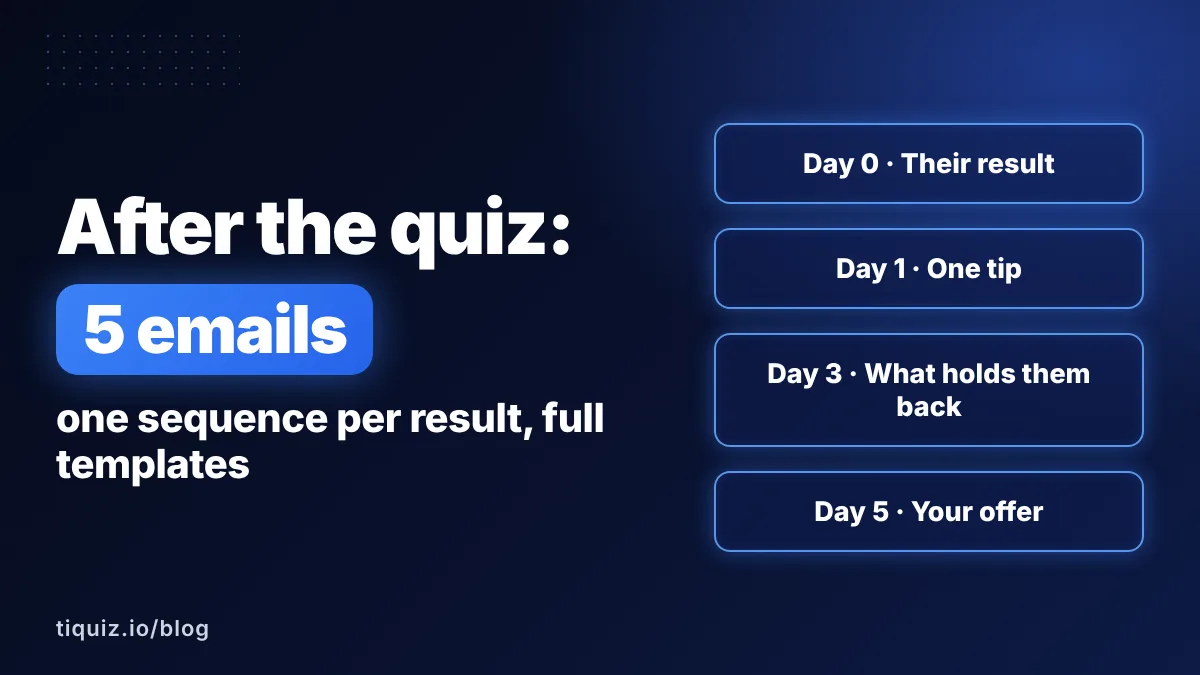
The plan that works after a quiz fits in five emails over seven days. In Brevo, each email is a "send an email" step, and each delay is a wait step between two emails.
| When | What it does | Wait before the next email | |
|---|---|---|---|
| 1. Their result | Right away (Day 0) | Says what the profile means, in plain words | 1 day |
| 2. One tip | Day 1 | Gives one thing to do right away, specific to this profile | 2 days |
| 3. What holds them back | Day 3 | Names this profile's obstacle, and defuses it | 2 days |
| 4. Your offer | Day 5 | Presents the offer from the angle that matters to this profile | 2 days |
| 5. Stay in touch | Day 7 | Says what comes next, without pushing the offer again | End of the automation |
All five emails are written out in full, for all three profiles, in the post-quiz email sequence. Copy them into Brevo and adapt them.
Put the quiz result in a Brevo email
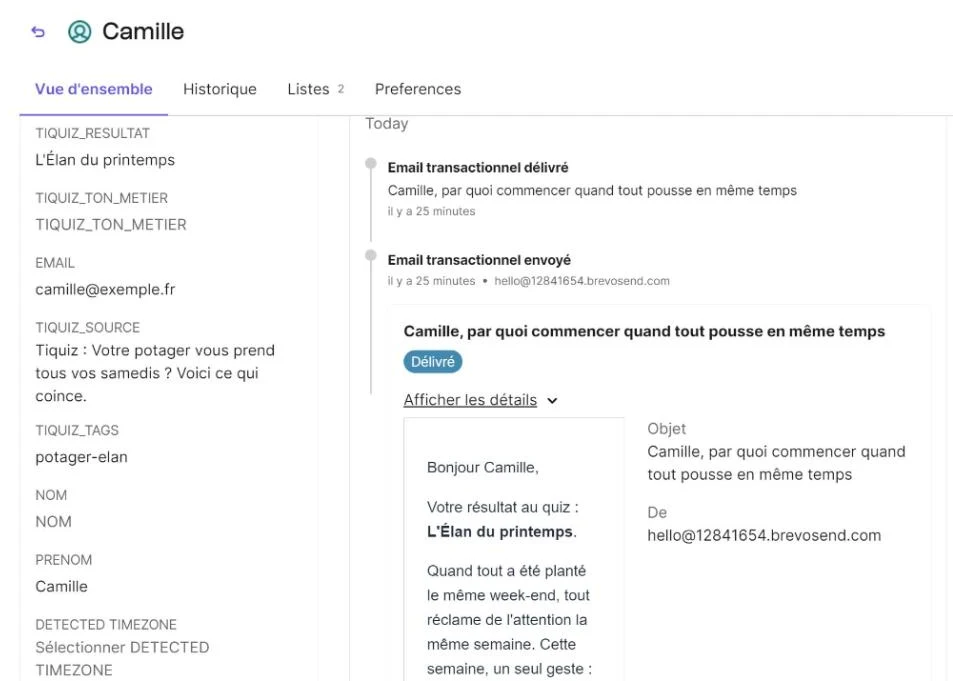
The result is on the contact record, in the TIQUIZ_RESULTAT attribute. You write it into a Brevo subject line or email with attribute personalization:
Your type: {{ contact.TIQUIZ_RESULTAT }}
For the first name, Tiquiz writes into the attribute your account already has: FIRSTNAME on an English Brevo account, PRENOM on a French one. Add a fallback in case the field is empty:
Hi {{ contact.FIRSTNAME | default:"there" }},
A custom field from your form also lands in an attribute, for example TIQUIZ_YOUR_JOB, and is written the same way.
Full example: three profiles, three Brevo automations
Here are the subject lines, profile by profile. Same structure everywhere, and a first email that tells each person what they just learned about themselves.
| Compass | Safety Net | Leap | |
|---|---|---|---|
| 1. Their result (Day 0) | You're a Compass (here's what that means) | You're a Safety Net (here's what that means) | You're a Leap (here's what that means) |
| 2. One tip (Day 1) | The 3-column exercise | How many months could you go without your paycheck? | 5 things to check before you quit |
| 3. What holds them back (Day 3) | Waiting for a certainty that won't come | The fear of losing what you have | Leaving too fast, and regretting it |
| 4. Your offer (Day 5) | Career Pivot Lab, to find your direction | Career Pivot Lab, to switch without risking everything | Career Pivot Lab, to jump with a plan |
| 5. Stay in touch (Day 7) | What I'll send you next | What I'll send you next | What I'll send you next |
Three automations, fifteen emails, and only emails 1 to 4 really need different writing. The fifth can be the same for everyone.
Brevo settings to check before you activate the automation
- A verified sender. Each email goes out from a sender your Brevo account has verified. Without one, the email doesn't send.
- Re-entry. Check the setting that says whether a contact can go through the automation again. It decides what happens when someone retakes the quiz.
- A test email. Send yourself each email before activating: that's where you see whether
{{ contact.TIQUIZ_RESULTAT }}shows up correctly. - A test lead. Take your quiz with one of your own addresses, and check that the contact joins the right list and that email 1 arrives.
- Your campaigns during the series. If new contacts also get your newsletter, they may receive two emails the same day. Decide whether the series comes first.
Brevo or Tiquiz follow-up emails: who sends the series
Tiquiz can also send the series that follows the quiz, one per result, written by AI. With Brevo connected, pick only one of them for this series:
- Everything in Brevo: your automations, your stats and your newsletter in one place. That's the plan in this article.
- The series in Tiquiz, the rest in Brevo: Tiquiz writes and sends the five emails, and Brevo keeps the contact for your campaigns.
Both at once, and the person gets the same series twice. For the connection itself, everything is in the guide to connect Tiquiz to Brevo.
FAQ · Brevo automation after a quiz
How do I trigger a Brevo automation after a quiz?
With a contact being added to a list. Tiquiz puts each lead in the Brevo list of their result, and that list's automation starts. Create one automation per list.
How many emails should a Brevo welcome series after a quiz have?
Five emails over seven days is a good base: the result, a tip, the obstacle, the offer, then an email to stay in touch. Emails 1 to 4 change from one profile to the next.
How do I show the quiz result in a Brevo email?
With the attribute personalization {{ contact.TIQUIZ_RESULTAT }}. Tiquiz writes the result into that attribute of the contact record with every lead.
Do I need one automation per result?
Yes, if each profile should get different emails. For one email that's the same for everyone, a single automation on the "Tiquiz - leads" list is enough.
Sources
- Tiquiz, the guide to connect Tiquiz to Brevo
- Tiquiz, the post-quiz email sequence (all five emails written out)