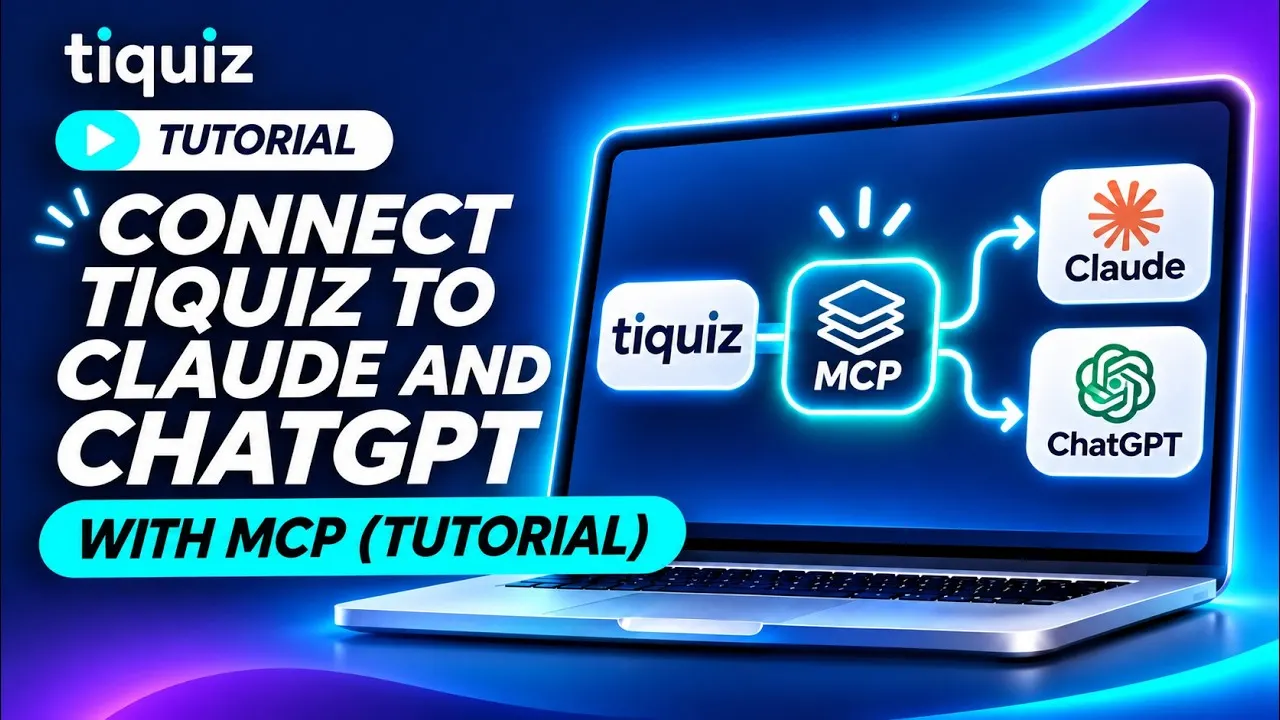
Update, November 13, 2026. Tiquiz is now officially published in ChatGPT: you add it from its official page, which is simpler than what the video above shows, since it was recorded before that date. Nothing changes for Claude.
You already use Claude or ChatGPT to think about your business. But to talk to them about your quizzes, you have to copy everything over: views, leads, questions, results. And do it again the next week, because the numbers moved.
The connector fixes that. Your AI reads your Tiquiz account when you ask your question, with the same numbers as your screens. Nothing left to copy.
What you can ask once it's connected
- "Give me a recap of my quizzes over the last 7 days, compared with the 7 days before."
- "My main quiz converts poorly. Run a diagnosis: where do people leave?"
- "Show me my last 10 leads and each one's profile."
- "Are my leads reaching Systeme.io with the right tag?"
- "Is my follow-up email sequence working? What's blocking its activation?"
- "Write a quiz for my business, 4 profiles, and create it as a draft."
For each request, the AI calls the Tiquiz tools it needs. There are eight: seven read your account, only one creates something, and that's a draft.
Step 1: add Tiquiz in ChatGPT or in Claude
In ChatGPT
- Open the official Tiquiz page in ChatGPT. If ChatGPT asks, sign in to your ChatGPT account first.
- From that page, add Tiquiz to your ChatGPT.
That's all on that side: there is no server address to copy, and no key to create or paste. You'll allow access on the Tiquiz page, in step 2.
In Claude
- In Tiquiz, open Settings, Connected AI tab. The Claude card shows the connector address:
https://app.tiquiz.io/api/mcp. Click Copy. - In Claude, open Customize, then Connectors. If you go through Settings, Claude tells you connectors have moved to Customize: it's the same place.
- Click + Add, then Add custom connector.
- Give it a name (for example Tiquiz Quiz Funnel) and paste the address. If Claude offers advanced settings, leave them empty.
- On the connector's row, click Connect.
No key to create there either: you'll sign in on the Tiquiz page in step 2. Claude renames its menus from time to time. If you can't find an entry, the Tiquiz in Claude page keeps the path up to date, and the Tiquiz in ChatGPT page does the same for ChatGPT.
Step 2: sign in and choose its permissions
Your AI opens a Tiquiz page. You sign in to your account, then the authorization screen shows the name of the app asking for access and the list of what it will be able to do, box by box:
- Read: your quizzes, their stats and diagnostics, your connections and your follow-up emails.
- Read leads: your leads and their answers, with emails masked (ma***@gmail.com).
- See emails in full: a separate box, unchecked to start with. It can only be checked if reading leads is checked too.
- Create: create draft quizzes.
Uncheck what you don't want to give, then click Allow. You're back in your AI.
Step 3: ask your first question
Open a conversation and ask for example: "Give me a recap of my quizzes over the last 7 days." In Claude, check that the Tiquiz connector is turned on among the conversation's tools.
Depending on your settings, your AI asks for your approval before calling a Tiquiz tool. If you ask for a quiz, it gives you the editor link: you review, adjust, and you're the one who publishes.
Change permissions, read the log, cut off access
From then on, everything is managed in Settings, Connected AI tab:
- Your connected AIs: one card per AI, with its allowed actions. You check or uncheck what each one can do, and the change applies from its next request.
- Activity log: everything your AIs did in your account, action by action, with the date and the result. You can filter it and export to CSV.
- Cut off access: the AI can no longer read or create anything from its next request. To give it access again, the connection has to be started again from the AI.
Pitfalls to avoid
- Looking for where to paste the address in ChatGPT. There is nothing to paste anymore: you add Tiquiz from its official page. The connector address is for Claude and other compatible assistants.
- Looking for an API key. There isn't one. You sign in on the Tiquiz page, and your AI never receives your password.
- Checking emails in full "just in case". What your AI reads to answer you goes through its provider's servers. Keep the mask on, except for a specific need such as an export.
- Expecting an alert for every lead. Tiquiz can't send anything into a conversation on its own: numbers are read when you ask. To act on each lead as it arrives, there is the webhook.
- Assuming the quiz is live. A quiz created by your AI stays a draft until you publish it in the editor.
- On a Claude team account, adding a custom connector may be reserved for the people who administer the account.
FAQ: Tiquiz in Claude and ChatGPT
Does the connector work with the free Tiquiz plan?
Yes, on every plan, the free one included, with no credit card. Your plan's limits apply as they do in the app: on the free plan, one quiz, and leads beyond the visible quota stay locked.
Can my AI publish or delete a quiz?
No. Today, the only write action is creating a draft quiz. No deletion, no payment, no subscription change: those actions stay in the app.
Are my leads' emails sent to the AI?
Masked by default, in the form ma***@gmail.com. They only show in full if you check the dedicated box, on the authorization screen or in Settings, Connected AI tab.
Do I need to paste the connector address into ChatGPT?
No. In ChatGPT, you add Tiquiz from its official page, with no address and no key. The connector address is for Claude and other compatible assistants. Behind the scenes it's the same connector: the same tools and the same permissions.
How do I remove an AI's access?
In Tiquiz, Settings, Connected AI tab, Cut off access button. Nothing goes through from its next request. You can also remove the connector on your AI's side.