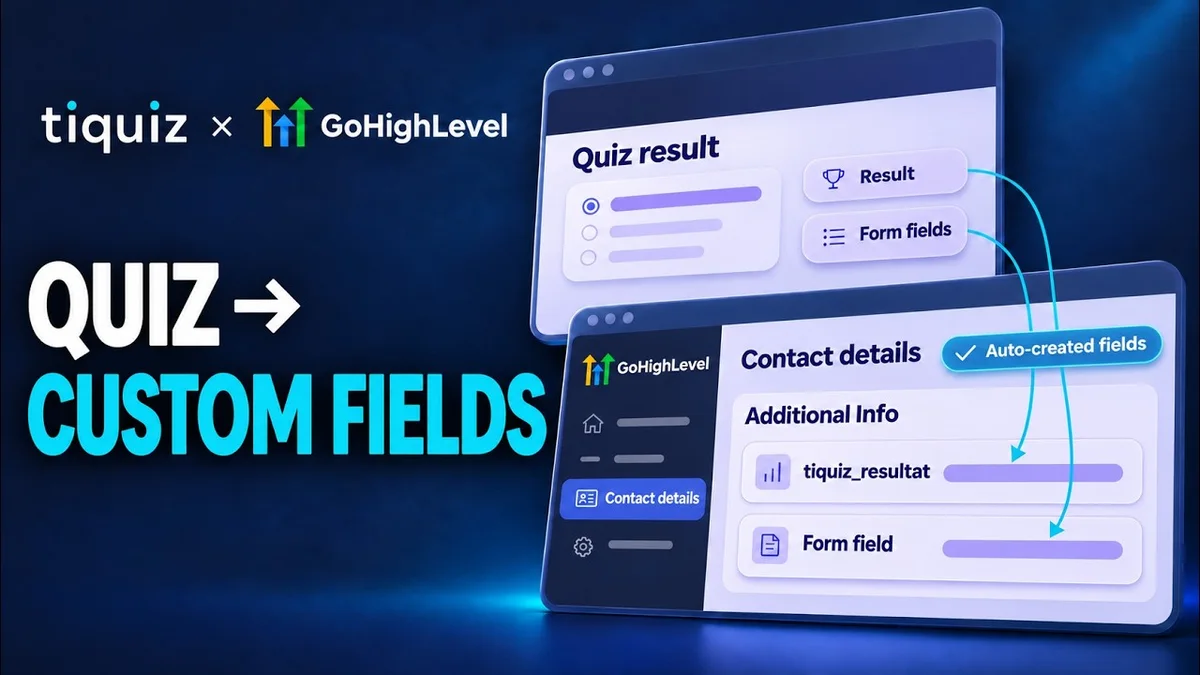
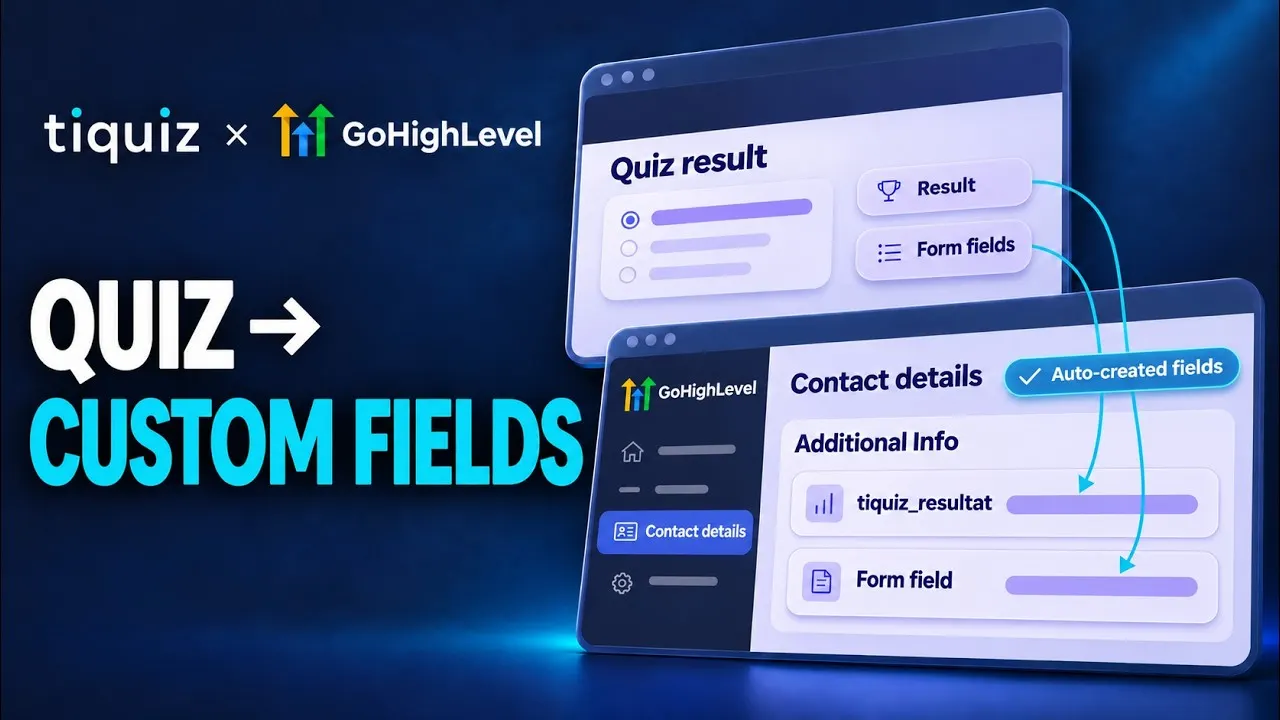
Until now, your contact landed in GoHighLevel with the tag of their result. That tag triggers your workflows, and that doesn't change. But you can't write a tag into an email: a tag won't let you say "your profile is The Busy Juggler."
Tiquiz now writes the result, and the answers from your form, into custom fields on the contact record. Your first message can mention the person's profile and what they told you about themselves. In the video, I use the account of Jeff, from Besoz Agency, who builds quizzes for local businesses.
Step 1: your connection's permissions
Reading and writing custom fields is a separate permission, which GoHighLevel shows when you connect your sub-account.
- You connect GoHighLevel today: it's already requested. Skip to step 2. If you've never done it, the walkthrough is in connect Tiquiz to GoHighLevel.
- Your connection is older: update it.
To update it:
- In Tiquiz, open Settings, then the Connections tab.
- On the GoHighLevel card, click Manage, then Add a sub-account.
- GoHighLevel shows what Tiquiz is asking for. In the list, you'll find the custom fields, with read and write access. Click Next.
- Pick the same sub-account. Tiquiz updates the connection.
Nothing is deleted, and your quizzes stay linked to that sub-account. Don't delete the connection to redo it: it isn't needed, and your quizzes would lose their destination.
Step 2: add a field to your form
- Open your quiz. In the Create tab, open Settings.
- Under Contact form, click Add a field. Tiquiz asks you to name it, in the preview.
- Open the Lead capture screen, click the new field, and type its label. Jeff asks for the business name.
- Save.
That label becomes the field's name in GoHighLevel. Pick it the way you'd want to read it on a contact record: "Business name" explains itself, "Field 1" doesn't.
The quiz result needs no setup: it goes into tiquiz_resultat as soon as your connection is allowed to write custom fields.
The test: what lands in GoHighLevel
Emily takes Jeff's quiz. Before her result, she leaves her first name, her email, her phone number, and the name of her business: Emily's Flowers.
In Tiquiz, My leads shows GoHighLevel in the Sync column, with a green check. Her lead file keeps what she wrote, under Requested information.
In GoHighLevel, her contact record carries the tag of her result. And in the Additional Info folder, two fields are filled in, since Jeff's connection is allowed to write custom fields: tiquiz_resultat (The Busy Juggler) and Business name (Emily's Flowers).
Tiquiz created these two fields on its own. You'll find them in the GoHighLevel settings, under Custom Fields.
Use these fields in an email, a text message or a workflow
In GoHighLevel, each custom field has a key. You insert it in an email, a text message or a workflow, the same way you insert a first name. So your first message can mention the person's profile, and the name of their business: "Emily, your result is The Busy Juggler. Here's what I'd do first at Emily's Flowers."
The tag keeps its job: it triggers the workflow. The field fills in the message. For the workflows to build behind it, see the 5 GoHighLevel workflows to build after a quiz.
Three things to know
- A field you had already created in GoHighLevel is reused, if it has the same label. Tiquiz doesn't create a second one.
- If you rename a field in your quiz, GoHighLevel gets a new one, and the old one keeps its values. So settle on your label before you share the quiz.
- An orange triangle in My leads means the connection doesn't have permission to write the fields yet. Redo step 1. Without that permission, the contact and its tags are still sent: no lead is lost.
A lead that doesn't reach your sub-account at all is a different problem: the 5 checks, in order. And the full integration guide is on the GoHighLevel page.
FAQ: GoHighLevel custom fields and quizzes
Do I need to create the custom fields in GoHighLevel first?
No. Tiquiz creates the result field and one field per question of your form, when the first lead arrives. If a field with the same label already exists in your sub-account, it is reused.
Where do I find these fields on the contact record?
In the Additional Info folder of the contact record. And in the GoHighLevel settings, under Custom Fields, where each one shows its key.
My fields don't arrive, but the contact and its tag do: why?
Your connection doesn't have permission to write custom fields yet. My leads flags it with an orange triangle. In Settings, Connections, click Manage then Add a sub-account, and pick the same sub-account: the connection is updated, and nothing is deleted.
What happens if I rename a field in my quiz?
GoHighLevel gets a new field, with the new label. The old one stays in place with its values. Better to settle on the label before you share the quiz.
Is the result tag still added?
Yes. The tag is sent as before and triggers your workflows. Custom fields come on top: they let you write the result and the answers into your messages.