Someone just finished your quiz. Their result says they are looking for a solution now. That is the best moment to offer a call, and it is also the moment when most quizzes answer "check your inbox".
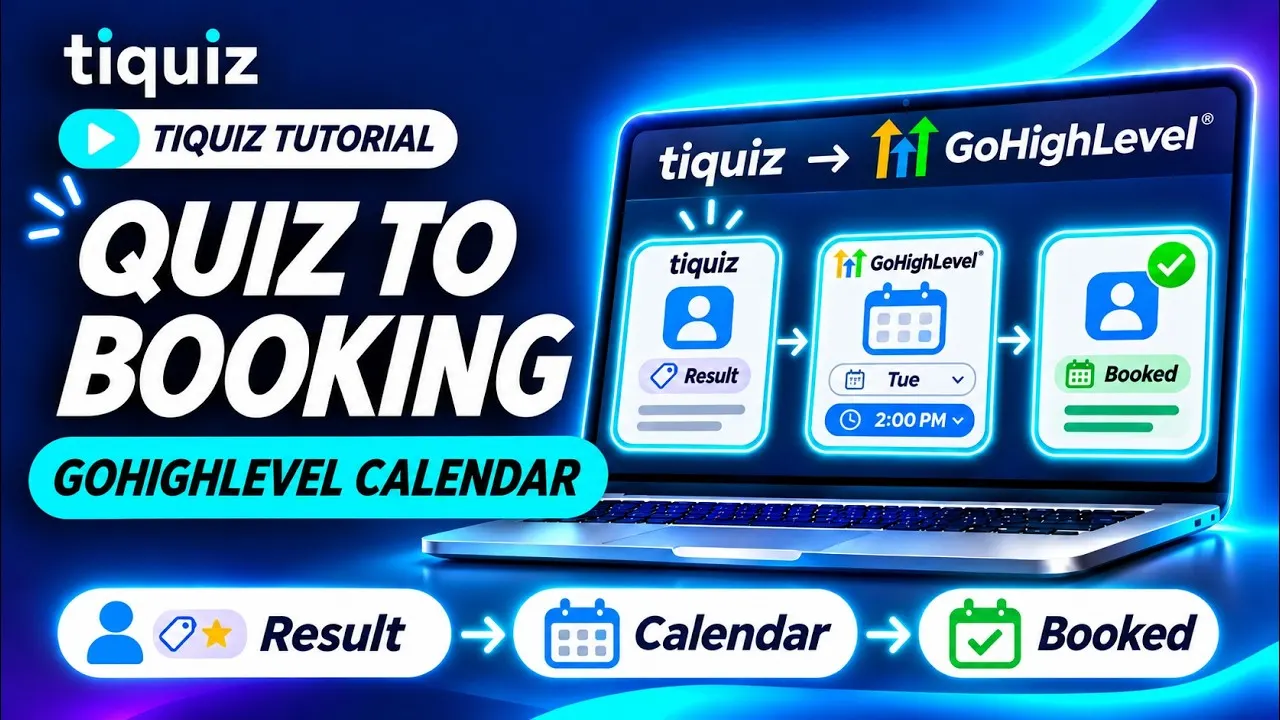
The shortest path is one button: the result, then the calendar. The other results keep their own button, to a resource or an offer.
This article follows the video tutorial step by step, with the exact labels of the Tiquiz screens. What I say about GoHighLevel comes from its help center (checked November 2, 2026, links at the bottom) and from the recording of November 12, 2026, flagged as such.
What you need before you start
- A quiz with its results. If you don't have one yet, the AI writes it with you in a few minutes.
- A calendar in your GoHighLevel sub-account, and its link.
- Optional: the GoHighLevel connection, to find every contact in your sub-account with the tag of their result: the walkthrough is here.
Step 1: pick the result that deserves a call
A calendar offered to everyone fills up with calls that lead nowhere. Keep it for the most advanced result: the person who has already tried, who knows what they want, and who is missing someone to do it with.
Give the other results a next step that fits them: a guide, a video, your mini course. In Tiquiz, each result has its own button: nothing forces you to send everyone to the same place.
Step 2: get the calendar ready in GoHighLevel
Create your calendar in your sub-account, then grab its link. Two things seen during the recording of November 12, 2026, worth knowing before you look around:
- a sub-account with no user cannot have a "Personal booking" calendar: the recording used an "Event calendar";
- with the GoHighLevel interface set to French, the booking widget stayed in English.
You can also put the calendar on a page of your funnel: in the GoHighLevel page editor, the Calendar element inserts it without any code. The result's button then leads to that page, which you can dress up your way. The full funnel build is in the GoHighLevel quiz funnel from A to Z.
Step 3: paste the link into the result's button
- In Tiquiz, open your quiz, Create tab, then the result you picked.
- Write the button text: what the person gets by clicking, for example "Book my call".
- In the Button link field, paste the address of your calendar, or of your booking page.
Tiquiz warns you when a button cannot work. A text without a link shows "This button leads nowhere: add its link just above." A result without a link has no button at all: "This result has no button: visitors won't see any." And when you set the quiz live, Tiquiz counts the result buttons that have no link before it lets you continue.
Step 4: pass the first name and email along, if the landing page uses them
Below the link, open the Prefill the next page with the first name, email or an answer block. The + Field menu adds to your link what the visitor entered in your quiz: First name, Email, Result obtained, and the other fields of your form. Each field arrives with a parameter named after it, which you can rename if the landing page expects another one. An empty field is removed from the link.
Two limits to know before you use it:
- What the landing page does with those fields is up to that page. On a GoHighLevel funnel page, a URL Parameter inserted from the Custom Value Picker shows the first name in a headline, for example. For the calendar's booking form, I have not verified which parameters it reads: promise your visitors nothing until you have seen it work on your own page.
- The email shows in the page address. Only add it if that page needs it.
Step 5: set up what comes next in GoHighLevel
Tiquiz does not read your appointments: the permissions it asks for cover your contacts, your sub-accounts and your tags. GoHighLevel is the one that knows who booked. Two settings make the link:
- The result's tag. On that result, the Tag to apply to people who got this result field lists the tags of your sub-account. With the connection, the person lands in your sub-account with that tag, whether they book or not: if they don't, a workflow can follow up.
- The appointment workflow. A workflow on an appointment trigger for your calendar, with Remove from Workflow to stop the follow-ups for the person who just booked, and an action that adds a tag such as
call-booked.
The five workflows of a quiz, follow-up included, are in the 5 GoHighLevel workflows. And to have that same result open an opportunity in your pipeline, follow the pipeline tutorial.
Step 6: test the path, from the quiz to the booking
Set your quiz to Live, then take it from its link, aiming for the result with the call.
- On the result page, click the button: your calendar opens in a new tab, and the quiz stays open behind it.
- Book a test slot, then check that it is in your GoHighLevel calendar.
- Run the path again on your phone: that is where most of your visitors will answer.
- Go through another result: its button should lead somewhere else.
If your quiz is embedded in a page, it behaves the same way: the button opens in a new tab, it does not lock the calendar inside the quiz frame.
The pitfalls to avoid
- The same calendar for every result. You fill your schedule with people who were not ready. One result, one next step.
- A button without a link. The result shows with no button, and the most advanced person leaves with nothing to book. Read the warnings in step 3 again.
- Counting on a booking form that is already filled in. The link can carry the first name and the email, but I have not verified what the GoHighLevel calendar does with them. Test on your page before you announce it.
- Looking for a "Personal booking" calendar in a sub-account with no user. Seen during the recording of November 12, 2026: it is not available, the recording used an "Event calendar".
- A booking widget in another language than your page. Seen during the same recording: with the GoHighLevel interface in French, the booking widget stayed in English. If your audience reads another language, check what the widget shows before you send traffic.
- The calendar link of another sub-account. If you manage several clients, check that the button leads to the right client's calendar: one quiz per client, leads in the right sub-account.
Still deciding between GoHighLevel's own quiz builder and a connected tool? The comparison is in GoHighLevel quiz builder vs an external quiz tool.
FAQ: from a quiz result to a GoHighLevel booking
Do I need to connect GoHighLevel to Tiquiz to send people to my calendar?
No: the result's button is a link, it works without a connection. The connection is there to find the person in your sub-account, as a contact, with the tag of their result, so you can follow up if they do not book.
Is the booking form filled in with the first name and email from the quiz?
Tiquiz can add the first name and the email to the button link, for the next page. What the GoHighLevel calendar does with them has not been verified: test on your own page, and do not promise it before you have seen it.
Can each result lead to a different calendar?
Yes. In Tiquiz, each result has its own button and link: a calendar for one result, an offer page or a free resource for the others.
Does the calendar open inside the quiz?
No. The result's button opens in a new tab, whether your quiz is opened from its link or embedded in a page. The quiz stays open behind it.
How do I know who booked after the quiz?
In GoHighLevel. Tiquiz does not read your appointments. With the connection, each person lands in your sub-account with the tag of their result, and a workflow on an appointment trigger for your calendar adds a tag when they book.
Does the GoHighLevel booking widget follow the language of my interface?
During the recording of November 12, 2026, it stayed in English while the GoHighLevel interface was in French. If your audience reads another language, check what the widget shows before you send traffic.
Sources (checked November 2, 2026)
- HighLevel, "How to Embed a HighLevel Calendar on Any Website Using HTML" (Calendar element): help.gohighlevel.com
- HighLevel, "URL Parameters in Funnels, Websites, Stores and Webinars": help.gohighlevel.com
- HighLevel, "Appointment scenarios in Workflow": help.gohighlevel.com
- HighLevel, "Workflow Action - Remove from Workflow": help.gohighlevel.com
- Recording of the tutorial, November 12, 2026: the "Personal booking" calendar unavailable in a sub-account with no user, and the booking widget that stayed in English.