Why give a bonus: what 50 years of research measured
A gift changes what happens next, and researchers have been measuring that for more than fifty years.
1971, Stanford. A researcher named Dennis Regan ran a simple experiment. During a break, his assistant, posing as another participant, left the room and came back with two Cokes: one for himself, and one for the student sitting next to him, who hadn't asked for anything. A little later, the assistant asked that student to buy some raffle tickets. The students who got the Coke bought twice as many as the others.
That's the rule of reciprocity: when someone gives us something, we want to give something back. Robert Cialdini, the psychologist who wrote Influence, says every culture teaches it to its kids.
2002, in a restaurant. With the check, the server leaves one piece of chocolate per guest: tips go up a little over 3 percent. Two pieces: 14 percent. One more chocolate, and the effect is more than four times bigger.
I won't promise you those numbers with your quiz: those were tips and raffle tickets. But look at what happens on your side. Someone answers your questions, gives you their email, and gets their result. They've already received something. If you add a real gift on top, a checklist they'll use, a calculator that runs their own numbers, you're giving them more than they expected. Your quiz gets hard to say no to, and hard to keep to yourself.
That's how I've always worked: I put as much care into what I give away as into what I sell. When your free stuff really helps, people trust you. And the day you bring up your offer, they listen.
One condition: it has to be a real gift
A rushed bonus shows right away. And that's where it used to get stuck: a bonus means finding the idea, writing it, laying it out, and putting it online. First comes "I don't know what to create." Then comes "I don't have the energy to build one more thing."
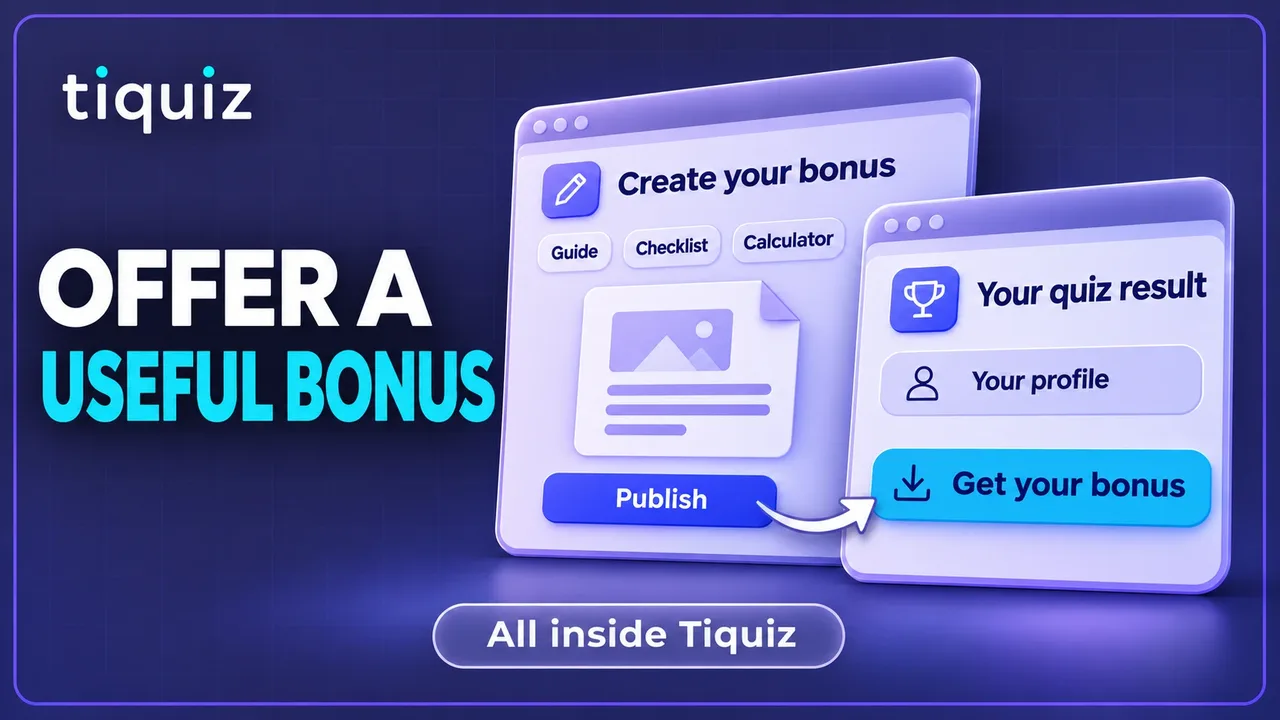
Tiquiz handles all of it: it reads your quiz, writes your bonus, lays out the page, and keeps it online. You read it over, and you publish. If you're still deciding what shape your gift should take, the article on what a lead magnet is compares the formats.
The two places to give your bonus
| Where | Who gets it | What it does for you |
|---|---|---|
| At the end of the quiz, once the result is on screen | Everyone who finishes | It gives people a reason to answer every question, and it rewards the ones who did. You can announce it on the first page of your quiz. |
| In exchange for a share, right before the result | The people who share your quiz | It sends your quiz places: everyone who wants the gift passes your quiz along, and you get new visitors. |
You can do one, the other, or both. In the video, we build both on Jeff's sample account, which has a quiz about sourdough bread.
Create the end-of-quiz bonus, step by step
- Open your quiz, then click the Bonus tab. On the left, you'll see At the end of the quiz: click Create this bonus. Your quiz is already selected.
- Pick the shape of your gift: a calculator, a checklist, an action plan, a short guide. If you're not sure, keep AI picks: it goes with whatever will help your quiz takers most.
- Describe your bonus in one sentence, right below. You can also leave it empty.
- Click Create my bonus and give it about a minute. Tiquiz reads your quiz, writes the bonus, and lays out the page.
On Jeff's account, the empty field produced "Your bake card for a loaf you're proud of": a four-step method, a calculator, and a checklist.
Read it. For real.
The AI wrote this for you, so it may have made up an example or gotten a number wrong. This page has your name on it: everything on it has to be true.
- To change a text, click on it and type.
- On the left, the outline of your page: drag a block to move it, or click Add a block for a video, an image, or a file to download.
- At the top, you choose the font, the color, and the theme. By default, your bonus takes the look of your quiz.
- At the very bottom, there's the button to your offer: Tiquiz carried it over from your quiz.
- Preview shows your page the way your visitors will see it, on desktop and on mobile.
Who gets to see the page
In Settings, you decide who sees your bonus. By default, only the people who took your quiz: each one gets a personal link. If you pick Everyone, your page gets an address you can share anywhere.
When you're happy with your page, click Publish. Your bonus is live, and your quiz hands it out on its own.
What your visitor sees
They answer the questions, leave their email, and get their result. Under your offer button, there's a second button: Access your bonus. They click, and their gift opens. If your follow-up emails are on, the link is in the first email too.
Create the bonus in exchange for a share, step by step
This is the one that sends your quiz places.
- Go back to the Bonus tab of your quiz. On the right, you'll see In exchange for a share: click Create this bonus. Same screen.
- Pick the shape and type what you want. Jeff picks Checklist and types: a checklist for the first 7 days of a sourdough starter. He clicks Create my bonus, reads it over, and publishes.
- Ask for the share inside your quiz. In the Bonus tab, Tiquiz gives you a heads-up: the share request isn't turned on. Click Turn it on: you land in the right spot, in the Share tab. Switch on Offer a bonus for a share.
- Write what your visitor will get, in a few words, right below. It's the line they'll read before they share, so make it tempting. Jeff types: my checklist, your starter ready in 7 days. If you leave it empty, Tiquiz shows the title of your bonus.
- Click Save.
What your visitor sees, on the share side
They leave their email, and before they see their result, they read: "Share the quiz to get my checklist." They pick a network, or they copy the link and send it to anyone they want. They share, they come back, and they click I shared the link: their bonus opens.
And if they'd rather not share? They click No thanks, see my results. They still get their result, just without the gift.
On their result page, both gifts are there, each under its own name.
Pitfalls to avoid
- Publishing without reading. The AI may have made up an example or gotten a number wrong. Read every line before you click Publish.
- Creating the share bonus and forgetting the request. Until Offer a bonus for a share is switched on in the Share tab, your visitor sees no invitation to share. The Bonus tab gives you a heads-up: click Turn it on.
- Leaving a flat invitation line. It's what your visitor reads before they share. Say what they get and what it does for them, like Jeff: my checklist, your starter ready in 7 days.
- Giving a rushed bonus. A gift nobody can use shows right away, and it hurts trust where it should build it.
Keep track of your bonuses
The Bonuses menu, on the left, is where all your bonuses live. For each one, you see how many people received it, how many opened it, and how many used it. And a bonus you've already made can be reused on another quiz.
What each plan includes
| Plan | Hosted bonuses | Written by AI |
|---|---|---|
| Free | no | no |
| Monthly and Yearly | yes | no: you start from a template, a file, or a blank page |
| Monthly PLUS and Yearly PLUS | yes | yes |
The details of each plan are on the pricing page.
Take action
Your first bonus takes about ten minutes, read-through included:
- open your quiz, Bonus tab, and click Create this bonus under "At the end of the quiz";
- keep AI picks, or pick a shape, then click Create my bonus;
- check every number and every example, then click Publish.
FAQ · adding a bonus to your quiz
Do I need to host my bonus somewhere or paste a link?
No. Tiquiz hosts your bonus page, and your quiz hands it out on its own once it's published: a button on the result page, and the link in your first follow-up email if your emails are on. There's no link to copy.
Can I give a bonus at the end of the quiz AND a bonus in exchange for a share?
Yes. Both are created in your quiz's Bonus tab, one on the left (At the end of the quiz), the other on the right (In exchange for a share). On the result page, the person finds both gifts, each under its own name.
What happens if my visitor doesn't want to share?
They click "No thanks, see my results" and still get their result, just without the share gift. The end-of-quiz bonus stays available to everyone who finishes.
Who can see my bonus page?
By default, only the people who took your quiz: each one gets a personal link. In the bonus Settings, you can pick Everyone: your page then gets an address you can share anywhere.
Can I create a bonus without AI?
Yes. Bonuses come with every paid plan, and the AI that writes them comes with the PLUS plans. Without it, you start from a template, from a file you already have, or from a blank page, then you build your page with the same blocks.
Should I review a bonus written by AI?
Yes, every time. The AI may have made up an example or gotten a number wrong, and the page has your name on it. Click any text to fix it, then publish.
Sources (checked November 26, 2026)
- Regan, D. T. (1971), "Effects of a favor and liking on compliance," Journal of Experimental Social Psychology, 7(6), 627-639 (the Coke and raffle ticket experiment): doi.org
- Strohmetz, D. B., Rind, B., Fisher, R., Lynn, M. (2002), "Sweetening the till: the use of candy to increase restaurant tipping," Journal of Applied Social Psychology, 32(2), 300-309 (the chocolates and the tips): doi.org
- Cialdini, R. B., Influence: The Psychology of Persuasion (the rule of reciprocity).