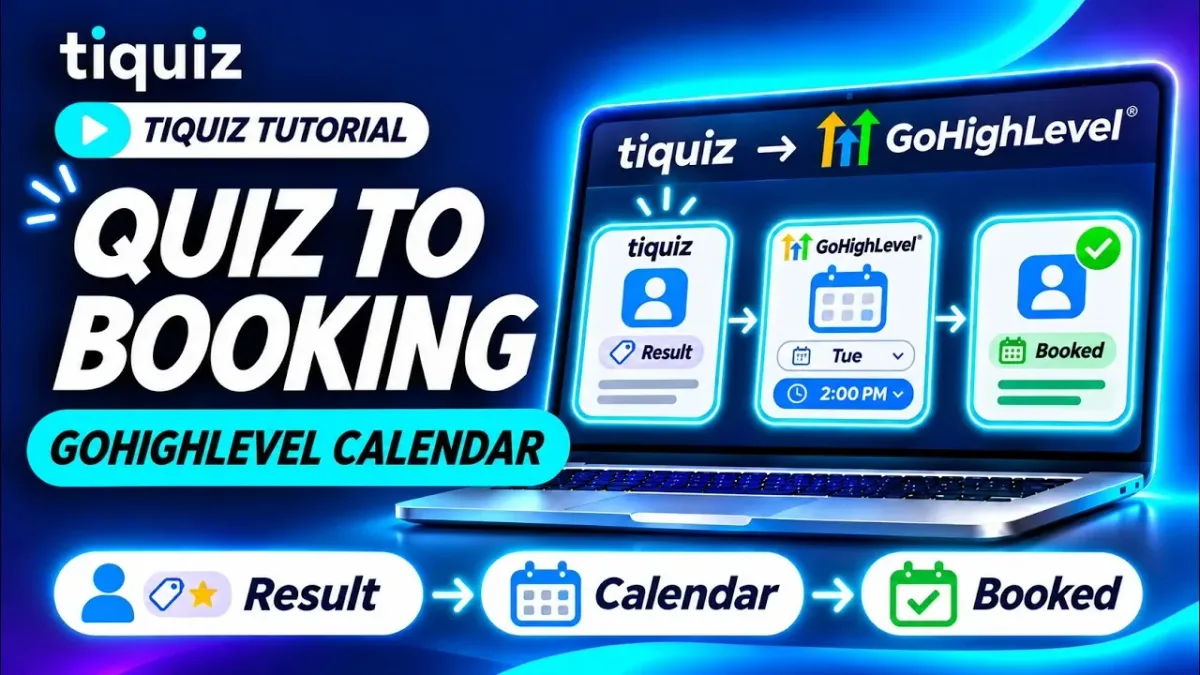
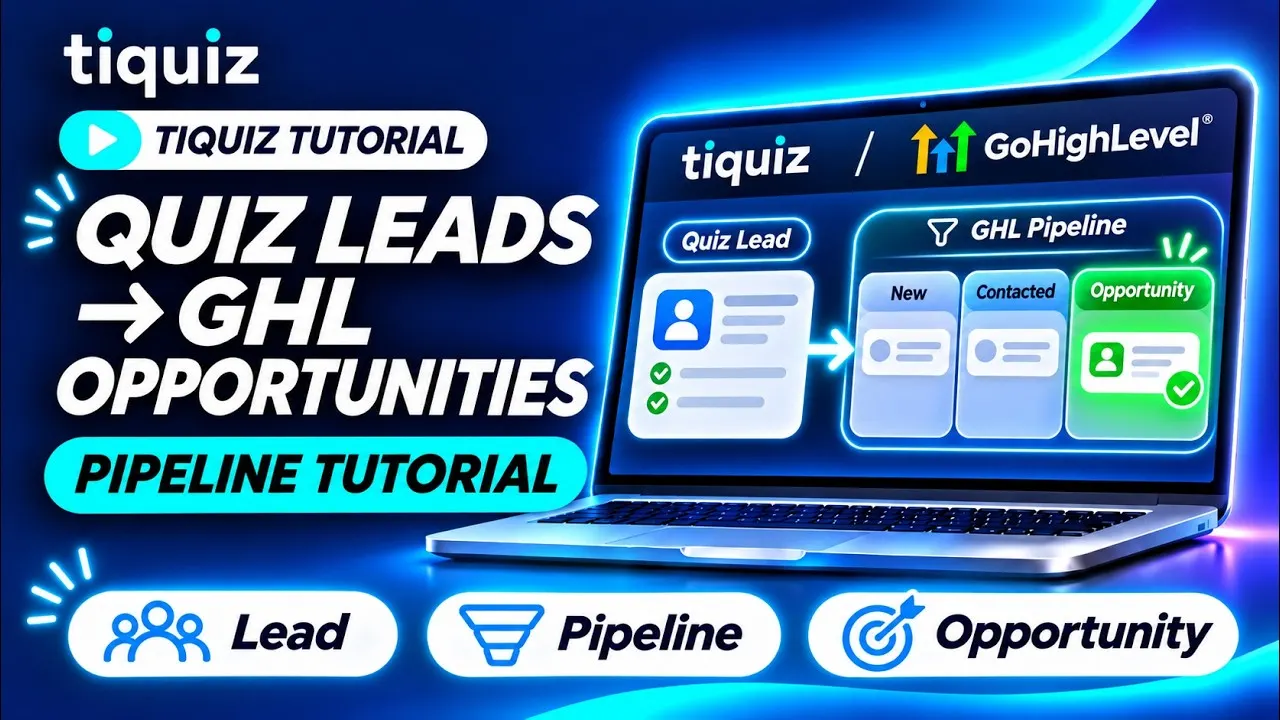
Your quiz already sorts your leads: everyone leaves with a result, and that result says where they stand. What is left is to surface the ones that matter where you track your sales: your GoHighLevel pipeline.
Without that, contacts arrive tagged, and it is on you to spot them one by one in the list. With it, the most advanced result opens an opportunity at the right stage while you do something else.
This article follows the video tutorial step by step, with the exact labels of the Tiquiz screens. What I say about GoHighLevel's menus comes from its help center (checked November 2, 2026, links at the bottom) and from the recording of November 12, 2026.
What Tiquiz sends, and what GoHighLevel does with it
With the native connection, every lead from your quiz lands in the sub-account you picked:
- as a contact, created or updated, with their email and the details your quiz asks for;
- with the tag of their result, added to the ones they already have;
- with the source "Tiquiz", followed by the quiz title;
- with the name of their result in the
tiquiz_resultatcustom field, when your connection is allowed to write the sub-account's custom fields.
Without that permission, the contact and its tags are still sent. So the whole setup rests on the tag.
Tiquiz stops there. The permissions it asks GoHighLevel for cover your contacts, your sub-accounts and your tags, not your pipelines: the opportunity is created by a workflow in your sub-account. If the connection is not in place yet, start with connecting Tiquiz to GoHighLevel.
Step 1: create the pipeline and its stages
In your GoHighLevel sub-account, open Opportunities, then Pipelines, and click Create new pipeline. Name it, add your stages with Add stage, and save.
If you start from scratch, four stages are enough: Hot profile, Call booked, Proposal sent, Won. The first one is where your quiz will drop its opportunities. Already have a sales pipeline? Keep it, and only decide which stage the quiz leads land in.
Step 2: pick the result that opens an opportunity
Not every result deserves an opportunity. Someone who is only just discovering their problem needs your emails before they hear about your offer: adding them to the pipeline fills it with rows you will never call back.
Keep the opportunity for the most advanced result, the person who is already looking for a solution. In Tiquiz, open your quiz, Create tab, then that result: the Tag to apply to people who got this result field lists the tags of your GoHighLevel sub-account. Pick one that reads on its own, for example quiz-energy-action. If it is not in the list, create it in your sub-account first.
The list is the one of the sub-account the quiz sends its leads to. So set Where this quiz's leads go, Your email tool line, first, and the tags second.
Step 3: make the first name required in the quiz form
This is the step that breaks the setup without a warning. Seen during the recording of November 12, 2026: a lead without a first name makes the opportunity creation fail ("Create opportunity" action), with the error "name should not be empty". The contact exists, the tag is there, the workflow starts, and no opportunity shows up.
In Tiquiz, Create tab, Contact form block: add First name if it is not there, then check Make first name required. If your quiz already asks for the first name upfront, there is nothing to check: nobody can start without it.
As long as the first name can be missing, your quiz's Automate tab shows the same reminder, under the workflow recipe.
Step 4: build the workflow that opens the opportunity
In GoHighLevel, create a workflow (Automations, Workflows). In Tiquiz, the Open my GoHighLevel workflows button in the Automate tab takes you there.
- The trigger: "Contact Tag", filter "Tag Added", then the result's tag. Do not retype it: in the Automate tab, one click on a tag copies it.
- The action: Create Opportunity, in your pipeline, at the "Hot profile" stage.
- Optional: Send Internal Notification, to whoever takes the calls. An opportunity nobody looks at is worth no more than a tag.
- Publish the workflow.
Publish it before you send people to the quiz. HighLevel's help center is explicit: tags trigger workflows only when they are added after the workflow is active. Contacts tagged earlier do not enter it on their own.
Step 5: test with a fresh address
Set your quiz to Live, then take it from its link, with a first name and an address your sub-account has never seen, aiming for the result that opens the opportunity. Check, in this order:
- the contact is in your sub-account, with the result's tag;
- the opportunity is in your pipeline, at the right stage;
- the notification arrived, if you added one.
Then take the quiz again with another address and another result: the contact arrives with its tag, and no opportunity opens. That is the sorting you wanted.
A fresh address for every test: with Allow Re-entry off, a contact goes through a workflow only once, and your second try with the same email stays silent.
The contact doesn't reach your sub-account at all? Follow the 5 checks for a quiz lead not showing in GoHighLevel, in order.
The pitfalls to avoid
- A lead without a first name. The opportunity is not created, and nothing warns you in Tiquiz: the contact itself was sent. Make the first name required (step 3).
- A workflow published after the traffic. Contacts tagged before it was published do not enter it. Workflow first, visitors second.
- A tag retyped by hand.
quiz-energy-actionsin the workflow,quiz-energy-actionon the contact: nothing fires. Copy the tag from the Automate tab. - The same address for every test. The contact already exists, the workflow does not run again, and you hunt for a bug that is not there.
- An opportunity for every result. Your pipeline fills up with people who are not ready, and the ones who are get lost in the crowd.
- A quiz that sends its leads elsewhere. If the quiz has another destination, or if another tool is your project's default destination, the contact never reaches this sub-account. Check Where this quiz's leads go.
- Building the workflow on a custom field. The result in plain words, in
tiquiz_resultat, is only written when your connection has permission to do so. The tag is always sent: that is your trigger.
The opportunity is one of the five workflows to build after a quiz: the sequence per profile, the follow-up and the alert are in the 5 GoHighLevel workflows. To send the most advanced result straight to your calendar, read turn quiz results into booked calls. And if you fill several clients' pipelines, one quiz per client, leads in the right sub-account.
FAQ: from quiz leads to GoHighLevel opportunities
Does Tiquiz create the opportunity in GoHighLevel?
No. Tiquiz creates or updates the contact in your sub-account and adds the tag of their result. The opportunity is created by a workflow in your sub-account, which starts on that tag (Contact Tag trigger, Tag Added filter).
Why does the opportunity creation fail with "name should not be empty"?
Because the lead has no first name: that is what was seen during the recording of November 12, 2026. In Tiquiz, Create tab, Contact form block, add First name and check Make first name required. If your quiz asks for the first name upfront, it is already required.
Should every quiz result open an opportunity?
No. Keep it for the most advanced result. The other results get their tag and their emails, and enter the pipeline later, when they click on your offer or book a call.
My contact has the tag, but no opportunity shows up. What should I check?
Four things, in order: the workflow was published before the tag arrived, the tag in the workflow is exactly the one in the quiz, the lead has a first name, and the test contact had not already gone through this workflow.
Does the quiz result show on the opportunity's contact?
Yes, through its tag. When your connection is allowed to write the sub-account's custom fields, the name of the result is there too in plain words, in the tiquiz_resultat field.
Is the GoHighLevel connection included in the free plan?
Yes. The free plan counts 1 connection, a subscription 2, and PLUS as many as you want. A Systeme.io key, a GoHighLevel sub-account and a webhook each count as one connection. The plans are on the pricing page.
Sources (checked November 2, 2026)
- HighLevel, "How to Create Pipelines in HighLevel": help.gohighlevel.com
- HighLevel, "Workflow Trigger - Contact Tag" (FAQ on tags added before the workflow is active): help.gohighlevel.com
- HighLevel, "Workflow Action - Create Opportunity": help.gohighlevel.com
- HighLevel, "Workflow Action - Internal Notification": help.gohighlevel.com
- HighLevel, "Workflow Settings - Overview" (Allow Re-entry): help.gohighlevel.com
- Recording of the tutorial, November 12, 2026: the "name should not be empty" error on a lead without a first name.