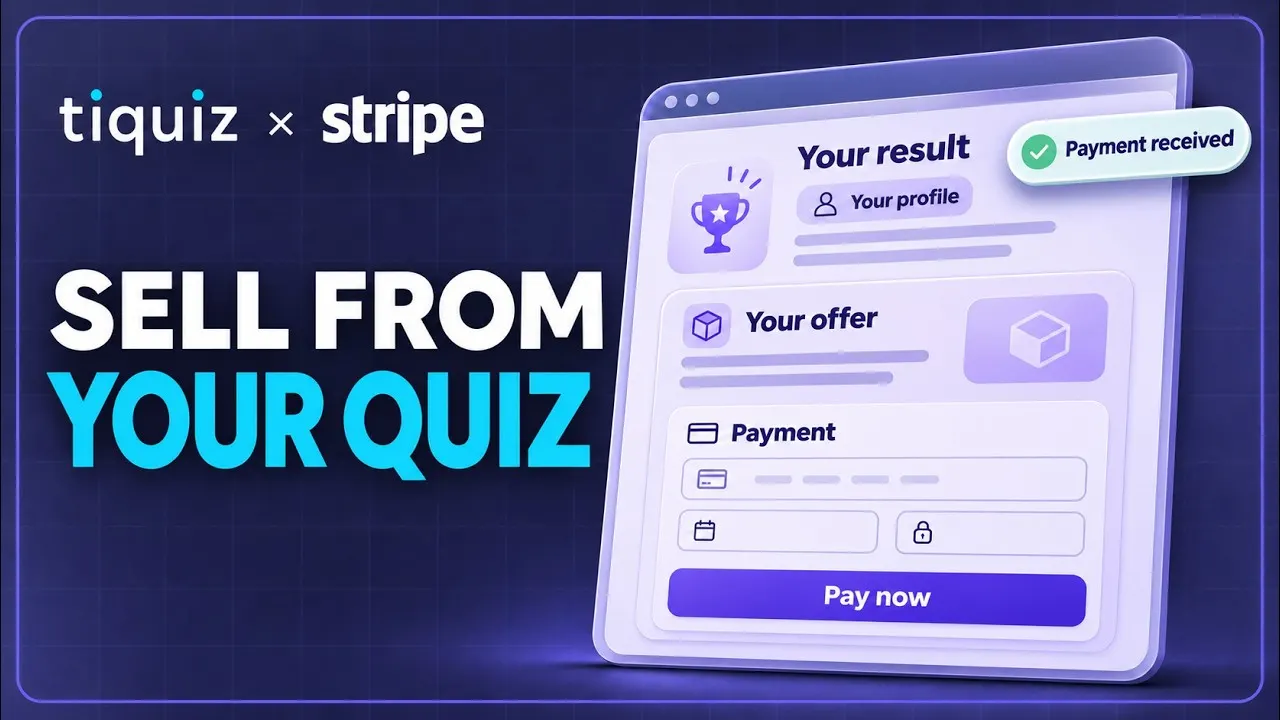
Emma just finished a quiz. Right under her result, she pays, without leaving the page. Within the same minute, she gets access to what she bought, and nobody lifted a finger.
Here's how to build exactly that, with Tiquiz, Stripe and GoHighLevel, on one example we follow from start to finish. At the end, I pay for real, so you can see what happens after a sale.
What we're building: Tyler's quiz
Tyler is an Instagram expert, and he sells three things. His problem: the people who follow him don't need the same thing. If he shows all three offers to everyone, nobody knows which one to pick.
So Tyler built a quiz: "How Much Money Are You Losing on Instagram Every Day?" Six questions about how people post, what someone sees when they land on their profile, and the DMs they get. At the end, they enter their first name and email, and they find out their profile.
| Profile | What's stuck | What they see under their result |
|---|---|---|
| The Invisible Account | Can't post consistently | A pack of 30 post templates, paid on the page |
| The Window-Shopper Account | Gets views, but no sales | A course, $197, paid on the page |
| The Plateaued Account | Already lands clients, just not every month | A free strategy call, booked on Tyler's GoHighLevel calendar |
Why a call for the third one? Because a 90-day coaching program sells best on a call. Each visitor gets the next step that fits them, on the same page. If you want the strategy behind it, read the CAPTO® method for selling with a quiz. Here, we handle the setup, in three steps.
Step 1: connect your Stripe
- In Tiquiz, open Settings, then the Connections tab. All your tools live here: Systeme.io, GoHighLevel, Brevo, the webhook, and the Stripe card.
- Click Connect my Stripe. Stripe asks for your identity and your bank details. That info stays with Stripe, and you only enter it once.
- Wait until the card says Stripe connected. From then on, every one of your quizzes can take payments.
Why your own Stripe account? Because the money from your sales goes straight to you. Tiquiz takes no cut: only Stripe's fees apply, paid by your account.
Already have a Stripe account? Click Connect my Stripe anyway and sign in with it: Stripe creates a separate account for your Tiquiz sales, right next to your existing one.
Since the video was recorded, the Connections tab got longer: you'll also find Kit, Mailchimp, MailerLite, GetResponse and PayPal there. If you connect your PayPal, the PayPal button shows next to the card payment, or instead of it.
Step 2: set up the sales page
Open your quiz. In the left menu, under your results, click Sales page.
What your visitor does after their result
Tiquiz asks you one question first: What should your visitor do after seeing their result? Three answers: Buy my offer, Book a call or Nothing else. Tyler has products to sell, so he picks Buy my offer. His call still fits on the same page, as you'll see below.
Then the setting that matters most in his case: A different offer for each profile. Turn it on, and you get one tab per profile.
Write each offer
In each tab, write the offer the way you'd pitch it to that person face to face:
- the Offer name;
- the Price, the one the visitor reads on the page;
- the promise, in one sentence;
- what people get, in three to six concrete points;
- the Button text.
Look at Tyler's buttons: "Get My 30 Templates," "Join the Course," "Book My Free Call." Each button tells people what they get when they click. That's what gets the click.
Pay here, pay on your link, or book a call
The What the visitor does block is set offer by offer. Three cards:
- Pays right on this page (Stripe): checkout opens under the offer, and the visitor never leaves their result. Tyler's choice for the pack and the course.
- Pays on my payment link: if you already sell somewhere else, the button opens your checkout page.
- Books a call: your calendar opens under the offer, and the visitor stays on the page. It works with Calendly, Cal.com, TidyCal, Systeme.io, GoHighLevel and Google Calendar. Tyler's choice for the Plateaued Account: he pastes the link to his GoHighLevel calendar.
Changed since the video: in the video, Tyler adds the first name and email in curly braces at the end of his GoHighLevel link. You don't have to anymore. When your calendar link is on leadconnectorhq.com or msgsndr.com, Tiquiz adds the first name and email on its own, like it already did for Calendly, Cal.com and TidyCal. Paste the plain link from your calendar's settings, and the booking form opens already filled in.
One exception: a white-label calendar, on your agency's own domain. Tiquiz can't recognize it as GoHighLevel, so add ?first_name={first_name}&email={email} at the end of the link yourself.
An offer does one thing. A call offer has no amount and no sales tag: the booking lands straight in your calendar. The price field stays free text, so Tyler writes something like "Free call, 30 min."
Two prices, on purpose
The Price is what the visitor reads on the page. The Amount charged is what Stripe actually takes, in the currency you pick.
Take Tyler's course. On the page, it says "$197, lifetime access." In Amount charged, he enters 197, in US dollars, with a one-time payment.
| Payment schedule | What it's for | What Stripe does |
|---|---|---|
| One-time | A product, like the pack or the course | Charges once |
| Monthly subscription | A membership, a piece of software | Charges every month until the subscription is canceled |
| Yearly subscription | The same, by the year | Charges every year until the subscription is canceled |
| Installments | A higher-priced offer | From 2 to 24 monthly payments, then stops on its own |
With installments, the amount charged is ONE payment. Say three payments of $69: Tiquiz shows you the total right below, $207, and Stripe stops after the last one.
Promo codes, receipts and sales tax
- Promo codes. Right under the schedule, turn on Allow promo codes: checkout gets a Promo code field. You create your codes in your Stripe (Product catalog, Coupons, then Add promotion code), and Tiquiz records what the person actually paid, discount included.
- Receipts. On a one-time payment, there's nothing to do: Stripe sends the receipt on its own. On a subscription or installments, turn receipts on once in your Stripe: Settings, Business, Customer emails, Successful payments. Tiquiz reminds you where to click.
- Sales tax. The price you set is what the buyer pays, tax included if you collect sales tax. Tiquiz doesn't calculate or add any tax, and filing it is up to you.
What the buyer gets
Just below, under What the buyer gets after paying, you can add an access link and a message. The buyer gets them by email as soon as the payment goes through, and sees them on the Payment received screen.
Tyler leaves them empty: GoHighLevel is going to deliver his courses, through the sales tags. That's step 3.
The page copy, written by AI
Click Write my page with AI (once your page is written, the button says Rewrite my page with AI, which is what you see in the video). It starts from your quiz, your profiles and your offers, and writes every section: the line that leads into the offer, "This is for you if," and the FAQ. With a text for each profile. For the call offer, it writes about the call, never about a purchase.
The Invisible Account reads: "You post when you can, so your future clients see someone else when they scroll." The Plateaued Account reads: "You already know Instagram can bring you clients, because some months it does." Each visitor feels like you're talking to them.
Read everything and fix whatever you want. You can also add a video, a guarantee, testimonials or a deadline. Real testimonials and real deadlines only: a testimonial without a name doesn't show.
Check each profile, then publish
Before you publish, Seen by shows you the exact page each profile gets. Tyler checks all three, calendar included, then clicks Publish my sales page.
Until you publish, your visitors see the result page they saw before. After that, every change waits until you click Publish changes.
Step 3: get your products delivered without lifting a finger
At every stage of a sale, Tiquiz adds a tag to the buyer in your tool, here GoHighLevel. Since Tyler has one offer per profile, each offer gets its own tags. You'll find them in your quiz's Automate tab, under Your sales. On a quiz in English, they end in -purchase and -refunded.
| Offer | Its tags |
|---|---|
| The pack, one-time | Purchase, Refund |
| The course, one-time | Purchase, Refund |
| The free call | None: nobody pays, and the booking lands in Tyler's GoHighLevel calendar |
A subscription or installment offer would get more tags (Payment declined, Subscription stopped or Installment plan stopped). The Automate tab lists them offer by offer.
Create the tags in GoHighLevel first
GoHighLevel creates a tag the first time Tiquiz adds it to a contact, so before your first sale, the sales tags don't exist there yet, and your workflow trigger has nothing to pick. Create them once, in GoHighLevel, under Settings, then Tags.
In the Automate tab, click a tag to copy it, and paste it in GoHighLevel. The name has to match character for character.
One workflow per tag: four for Tyler
A tag on its own doesn't do anything: you need a workflow. In GoHighLevel, access to a course goes through an offer, so Tyler creates a free offer for each course, once. Then one workflow per tag, in Automations, Workflows:
- Trigger Contact Tag, filter Tag Added, the pack's purchase tag. Action Course Grant Offer: 30 Instagram Post Templates.
- Trigger Contact Tag, Tag Added, the pack's refund tag. Action Course Revoke Offer: the same offer.
- The same for the course: grant on its purchase tag.
- And revoke on its refund tag.
That's four workflows: two for the pack, two for the course, and none for the call, which has no sales tag. A few minutes, one time. After that, every sale delivers the right product on its own.
For the call, a workflow that starts with Customer Booked Appointment can send a reminder before the meeting. If you've never built a GoHighLevel workflow, the guide to GoHighLevel workflows after a quiz walks you through the screens.
The real test: a purchase for real
For the tutorial, I set the pack at one dollar, so I could pay with my own card without going broke. I take the quiz as a visitor, Emma. She posts when she gets an idea, and she's not sure what she sells: her profile is the Invisible Account.
On Emma's side:
- Right under her result, the template pack, and the "Get My 30 Templates" button.
- She clicks: checkout opens on the page, with her email already filled in. (You set its colors in your Stripe account, under Settings, then Branding.)
- She pays. Payment received. The button locks, so nobody pays twice by mistake, and the page tells her the rest is on its way by email.
On Tyler's side, within the same minute:
- a New sale email, with the offer and the amount;
- the sale in the Sales tab in Tiquiz, marked Paid;
- in GoHighLevel, Emma got the pack's purchase tag, the workflow ran, and she has access to the course.
Tyler didn't touch a thing.
The booked call: Jake
Second visitor: Jake. He already lands clients, just not every month, so he's the Plateaued Account. He clicks "Book My Free Call," and Tyler's calendar opens right under the offer, with his name and email already filled in. He picks a time, and the appointment shows up in Tyler's GoHighLevel calendar.
If you want the result button itself to lead to your calendar, without a sales page, the GoHighLevel calendar tutorial shows that setup.
What if a customer asks for a refund?
In the Sales tab, click Open in Stripe, and refund it there. Tiquiz follows along:
- the sale switches to Refunded;
- the purchase tag comes off, the refund tag goes on;
- the second workflow removes access to the course;
- you get an email telling you exactly which tags changed.
A partial refund doesn't change anything: access stays, and you get an email about it.
With Systeme.io, Brevo or a webhook
Here, Tyler uses GoHighLevel. With another tool, it works the same way: Tiquiz marks the buyer, and your automation takes over.
- Systeme.io: the same tags land on the contact, and Tiquiz creates them in Systeme.io for you when you open the Automate tab, once your sales page is published. Your rule starts on "Tag added." See the Systeme.io automation rules guide.
- Brevo: Brevo has no tags, so each tag becomes a list with the same name. See Brevo automation after a quiz.
- Kit, Mailchimp, MailerLite, GetResponse: the Automate tab gives you the recipe with your tool's exact words.
- The webhook: your tool isn't on the list? The webhook sends every sale and every refund wherever you want.
Pitfalls to avoid
- Typing a tag name by hand. It has to match character for character, or the workflow never starts. In the Automate tab, click the tag to copy it.
- Building the workflows before the tags exist in GoHighLevel. The trigger can only pick a tag GoHighLevel knows. Create the tags under Settings, Tags first.
- One purchase workflow for every offer. With one offer per profile, each offer has its own tags: one workflow per tag, offer by offer, so each purchase gives access to what was paid for, and nothing else.
- Forgetting the refund workflow. Without it, a refunded customer keeps their access.
- Still typing curly braces on a GoHighLevel link. Tiquiz now adds the first name and email itself. Only a white-label calendar needs them.
- Mixing up the price shown and the amount charged. With installments, the amount charged is ONE payment. Tiquiz shows the total right below it: check it.
- Publishing without Seen by. The AI wrote a text for each profile: read every one, and keep only real testimonials and real deadlines.
- Forgetting receipts on a subscription. Stripe sends receipts on its own for one-time payments only. For a subscription or installments, turn them on once in your Stripe.
Take action
The sales page is part of the paid Tiquiz plans (the details are on the pricing page). You can build your first quiz on the free account, with no credit card and no time limit, then move to a paid plan the day you want to take payments.
- connect your Stripe in Settings, Connections tab;
- open your quiz, Sales page, pick Buy my offer, and write your offers;
- check with Seen by, publish, then create one workflow per tag from the Automate tab.
And if a step trips you up, ask your question in the comments under the video.
FAQ · selling from quiz results with Stripe
Does Tiquiz take a cut of my sales?
No, on no payment schedule. The money goes straight to your Stripe account. Only Stripe's fees apply, paid by your account, including Stripe Billing fees for subscriptions and installments.
I already have a Stripe account: do I need another one?
No. Click Connect my Stripe in Settings, Connections tab, and sign in with your account: Stripe creates a separate account for your Tiquiz sales, right next to yours. You switch between them from the top left of your Stripe dashboard.
Can I show a different offer for each result?
Yes. In the sales page, turn on A different offer for each profile: you get one tab per profile, with its own offer, its own price and its own way to pay. Each paid offer also gets its own sales tags.
Can one profile book a call while the others pay?
Yes. Keep Buy my offer, turn on A different offer for each profile, and pick Books a call for that profile's offer. Your calendar opens under the offer, prefilled with the visitor's first name and email on Calendly, Cal.com, TidyCal and GoHighLevel. A call offer has no amount and no sales tag.
Do I need to add the first name and email to my GoHighLevel calendar link?
Not anymore. On a link at leadconnectorhq.com or msgsndr.com, Tiquiz adds them on its own. Only a white-label calendar on your agency's domain needs ?first_name={first_name}&email={email} at the end, written by you.
Do installment payments stop on their own?
Yes. You pick from 2 to 24 monthly payments, and Stripe stops after the last one. If the payments stop before the end, Tiquiz adds the Installment plan stopped tag and removes the purchase tag. When the last payment goes through, access stays.
Can my buyer cancel a subscription without emailing me?
Yes. The Manage my subscription link, in their email and on the Payment received screen, opens their Stripe customer portal: they can change their card, find their invoices or cancel. You get an email when a subscription ends.
Who handles sales tax and invoices?
You do: you're the seller. The price you set is what the buyer pays, tax included if you collect sales tax. Tiquiz doesn't calculate or add any tax, and doesn't invoice your buyers.